How to add required fields to PDF forms with SimplePDF
Incomplete submissions mean chasing people for the one field they skipped. SimplePDF lets you mark fields as required so a form cannot be submitted until they are filled, set default values to pre-fill known information, and lock fields read-only so they stay on the document without being changed.
#Configuring document fields in SimplePDF
#Required fields
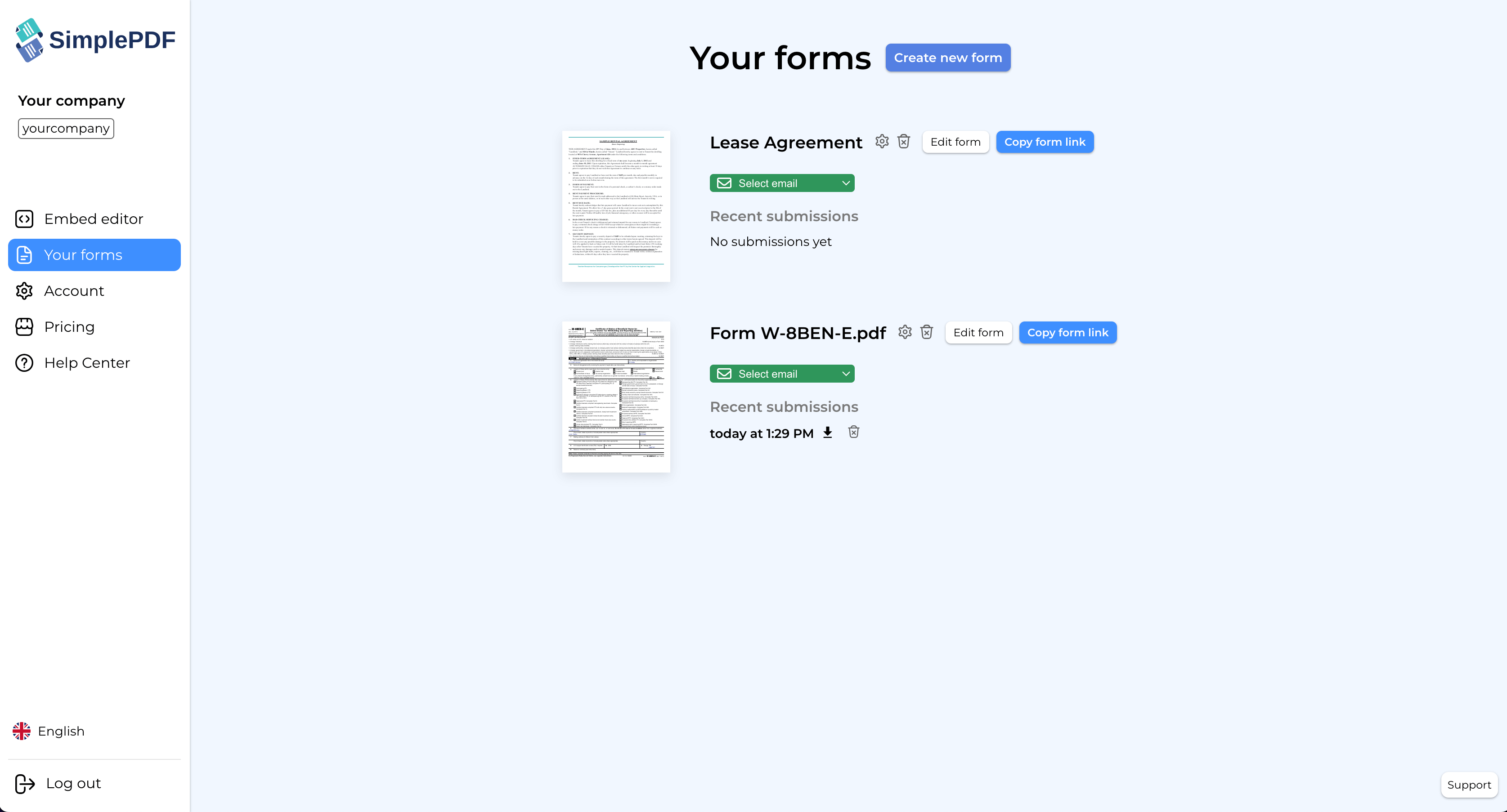
Open the Documents section and pick the document to edit, or create a new one.
- Select the field you want to require.
- Toggle
Requiredon in the fields panel. - Click
Save.
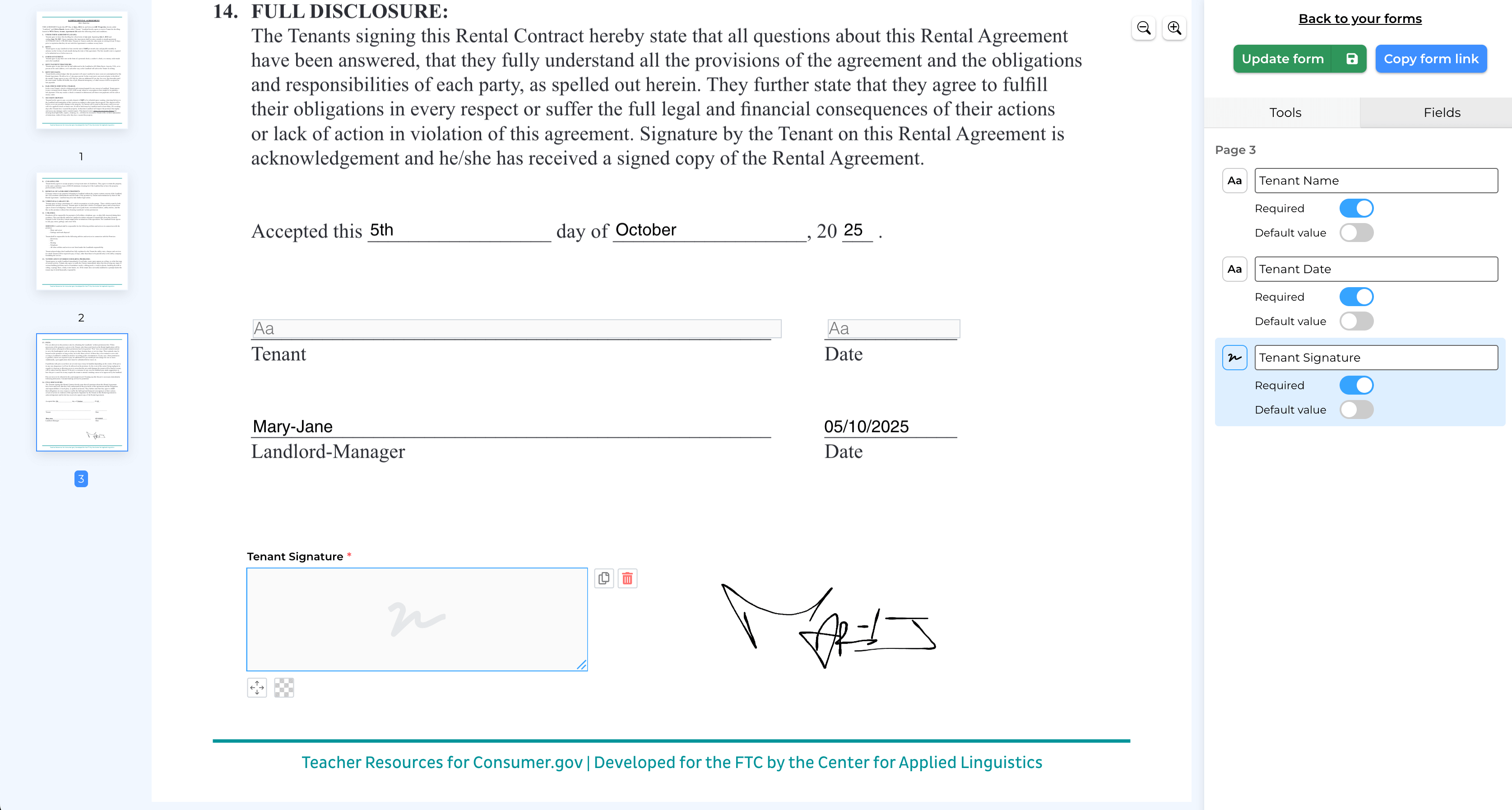
The field is now required and people have to fill it in before they can submit.
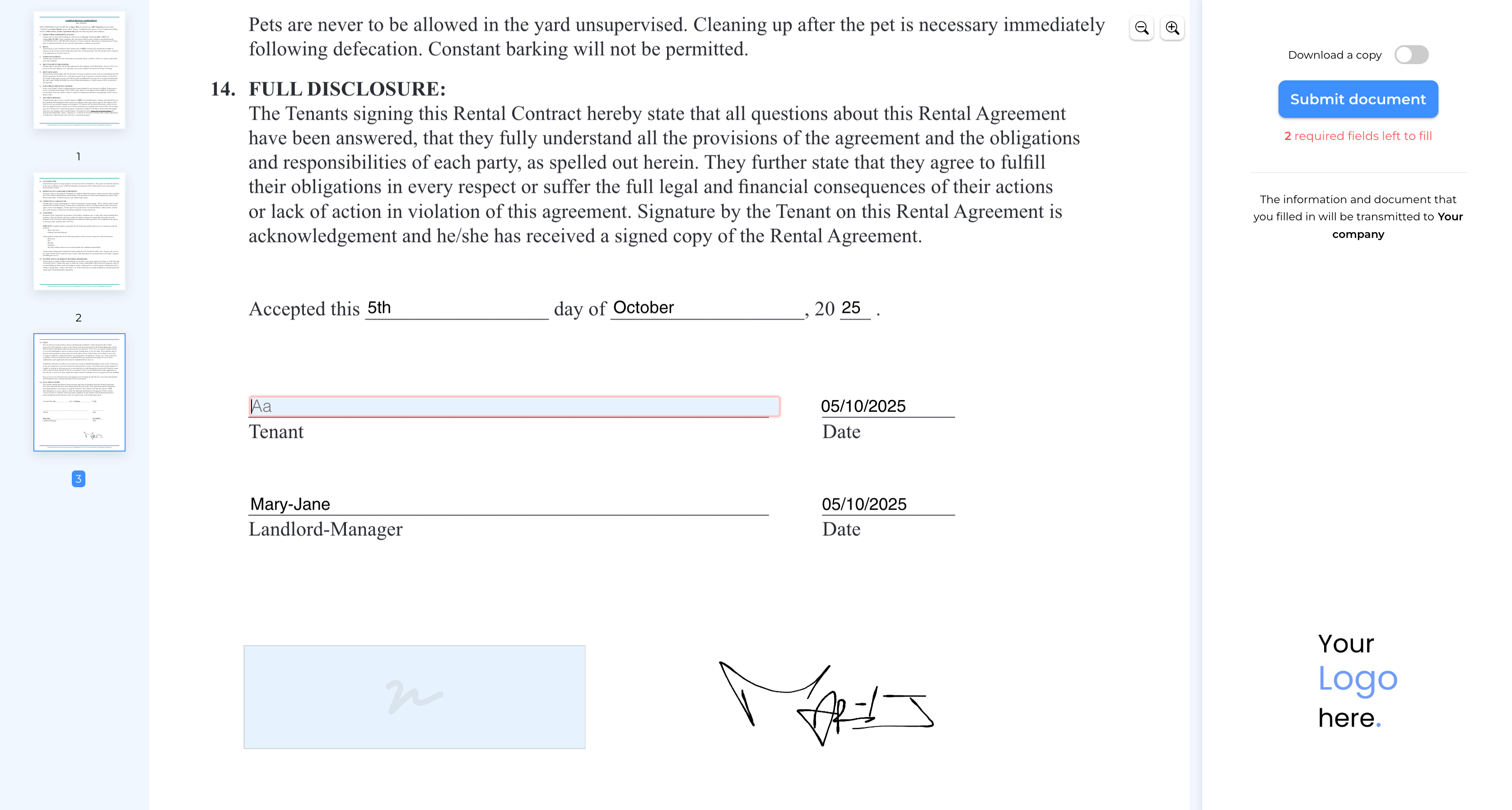
An example of a required field blocking submission:
#Fields with default values
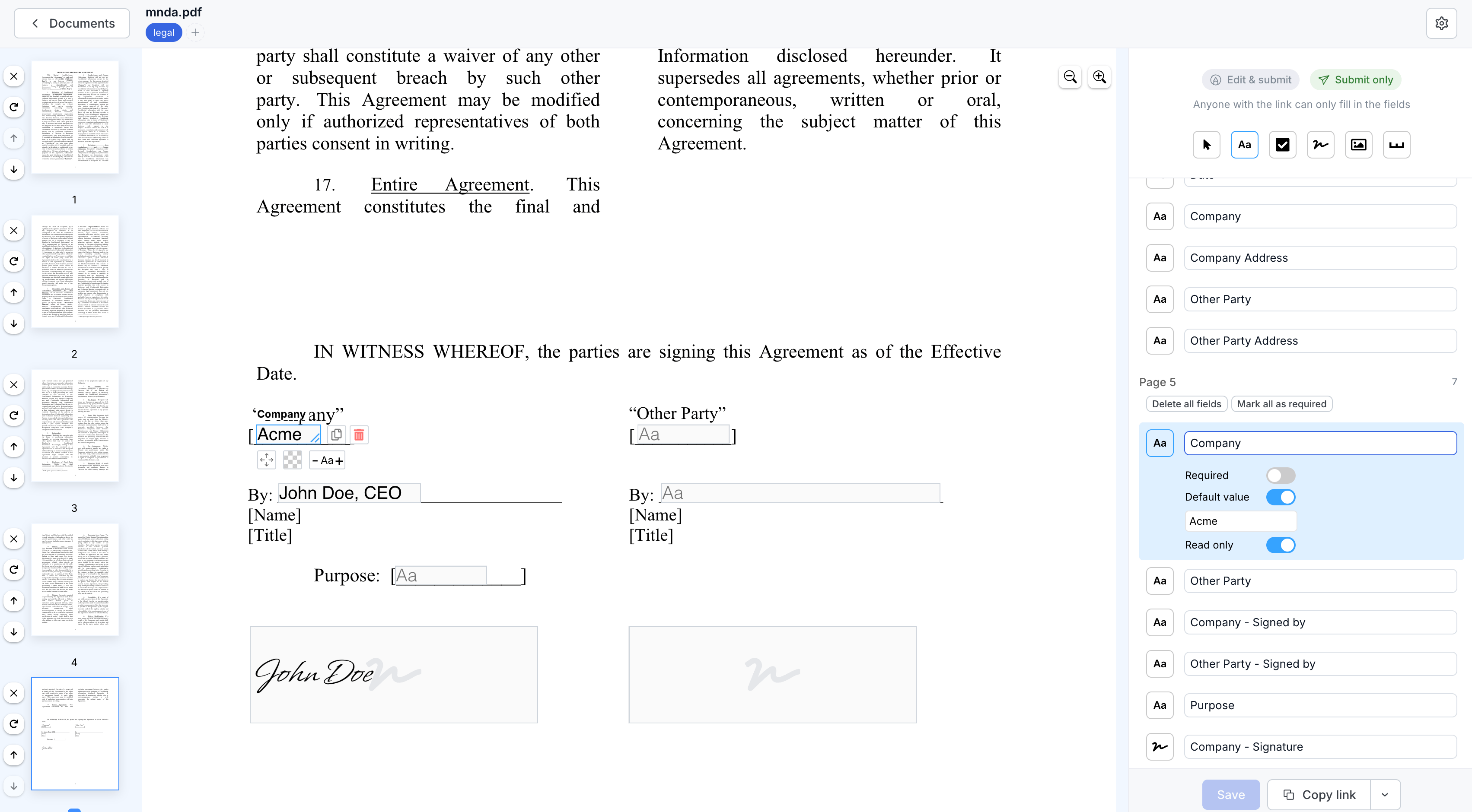
Give a field a default value: select it, toggle Default value, and enter the value. When someone opens the form, that field is already filled in.
#Read only fields
A field with a default value can also be marked Read only: its value appears as part of the document itself, indistinguishable from the rest of the content, and no one can edit it. Useful for information that should be shown but never changed.
#Name your submissions from a field
A dashboard full of submissions dated "12 Jun, 14:32" tells you nothing. Open the document's settings and, under Submission name, pick the field whose value should name each submission: any text, dropdown, or radio field works. A "Full name" field names each submission after the person who filled it; an invoice number names it after the invoice.
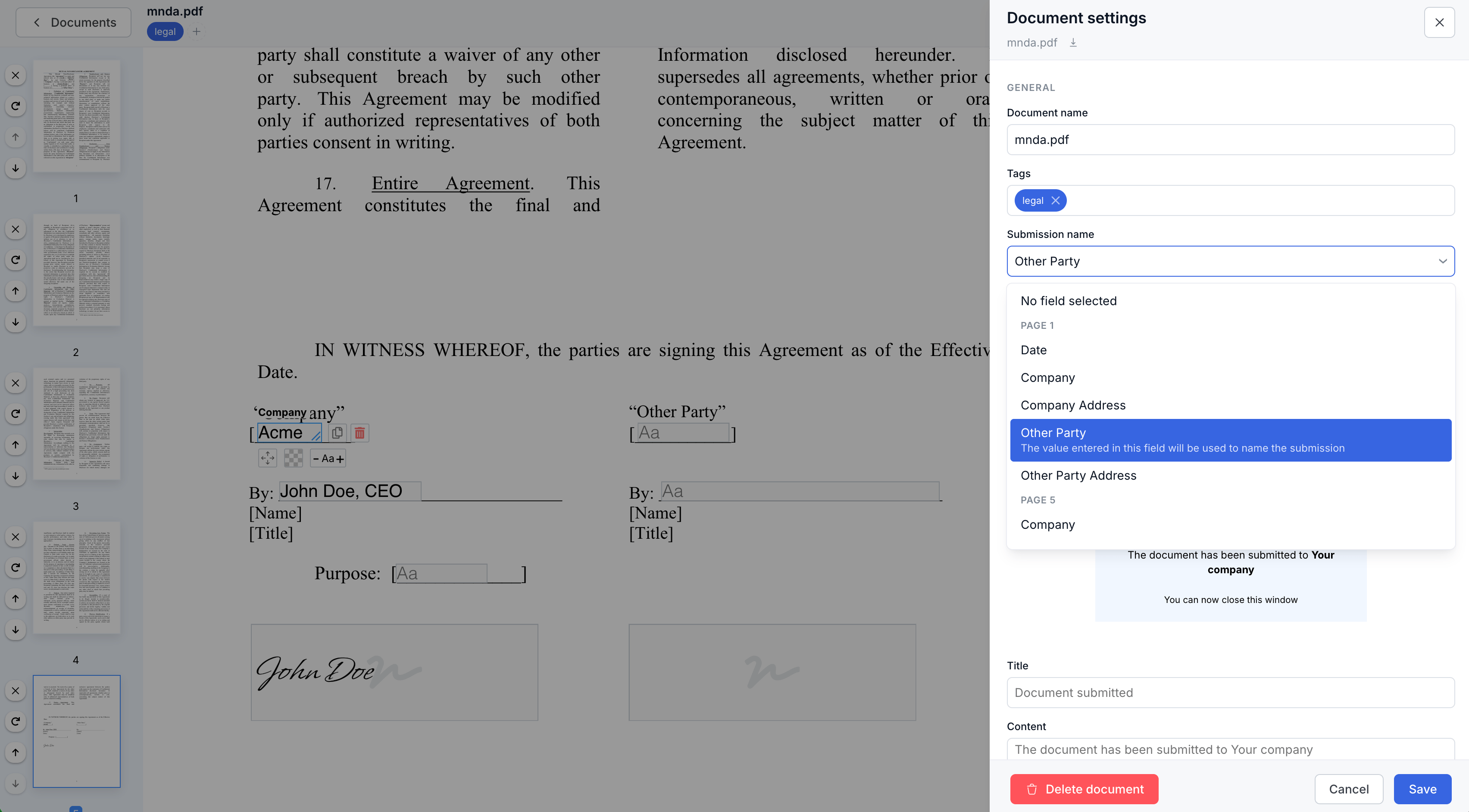
The name shows up where you actually work: as the label in the submissions list, in the notification email, and as the downloaded file's name. It is a single choice per document, so naming stays predictable. You can also rename any individual submission from its details panel.
Renaming can be used as a lightweight status tracker. When a submission feeds a downstream process, rename it as you work it: append [processed] once it is handled, and the list tells you at a glance what still needs attention.
One thing to keep in mind: the chosen field's value is stored on SimplePDF servers, even with Bring Your Own Storage, and travels in the notification email. For sensitive data, name submissions from a non-confidential field (a reference number, a case ID) or leave them unnamed.
That's it! Your form fields are now configured with the right requirements for complete submissions.
If you have any questions, feel free to reach out to support@simplepdf.com