How to turn an image into a PDF with SimplePDF
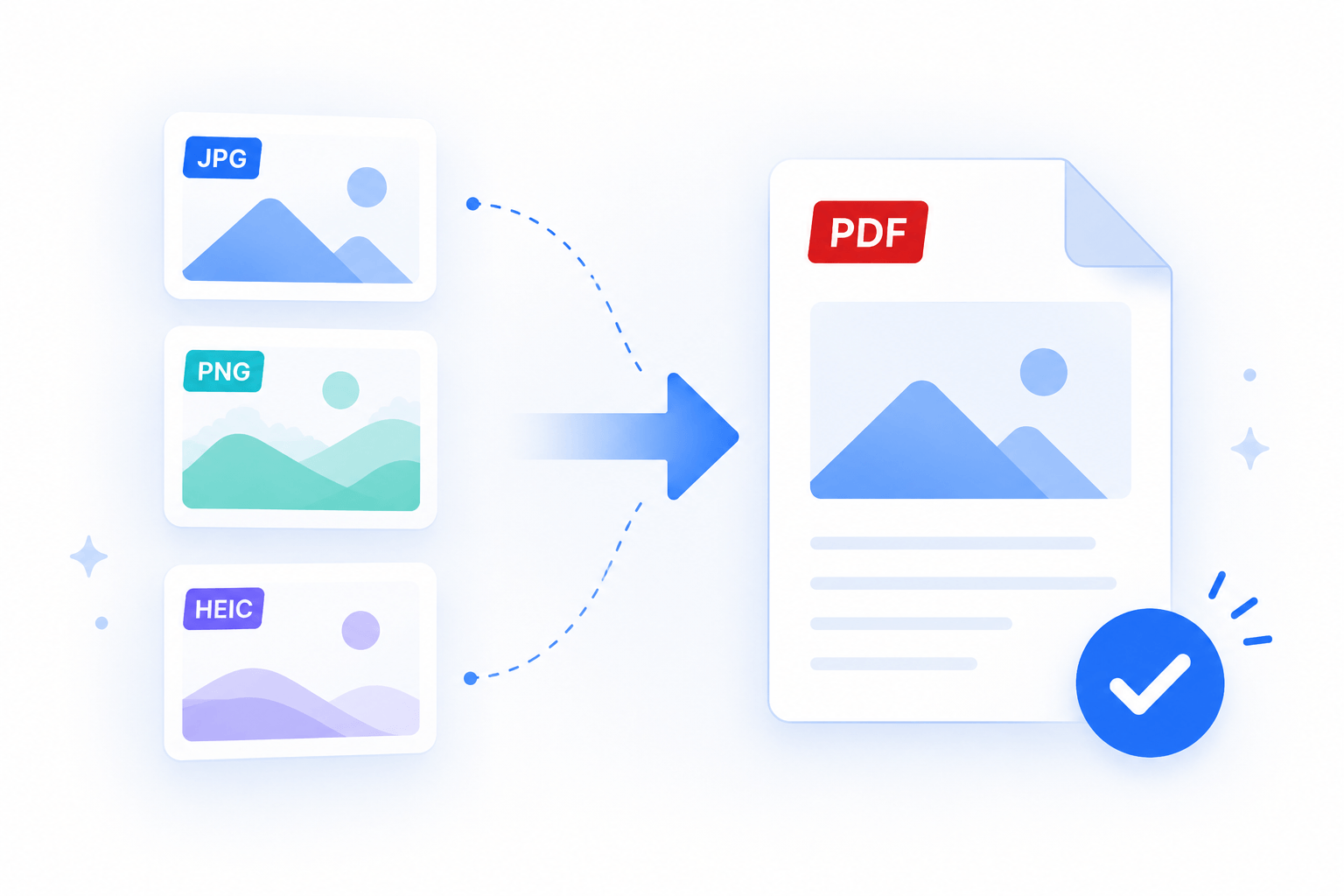
A photo of a signed form, a scanned receipt, or a screenshot is often the only copy you have, but most tools expect a PDF. SimplePDF turns a JPG, PNG, or HEIC image into a PDF page right in your browser, so every image lands on a clean page you can keep editing.
Turn an image into a PDF page
- Open the SimplePDF editor.
- Select your image from your device (or drag it onto the editor). JPG, PNG, and HEIC are all supported.
- The image is placed and centered on a fresh blank page, which takes portrait or landscape to match the shape of your image.
- Download the document - your image is now a PDF, ready to use wherever you need it.
Add another image before you download and it lands on its own page, so a stack of photos or scans becomes one multi-page PDF.
Adjust the image and the page
The image sits on the page as a picture you can edit directly, and the page follows along:
- Move and resize the image anywhere on the page. It keeps its proportions while you resize.
- Rotate the image 90 degrees, or rotate the whole page, when a photo comes in sideways.
- Copy the picture to place it more than once.
- Replace it with another image by selecting the picture and choosing a new file.
You can also keep editing the page like any other: fill in fields, sign it, or add notes on top of the image.
Add more images or pages
Build the document up one image at a time, or drop an image into a PDF you are already working on:
- Load or create your PDF in the editor.
- Select the + button to add a page and choose your image.
- Each image is appended as its own page, fitted and centered, ready to edit.
When you are done, save the document and you have a single PDF holding every image, each on its own page.
Add fields on top of an image
A photo of a form is not much use until you can fill it in. Once you have turned it into a PDF with the steps above, open that PDF back in the editor and add fields on top of it like any other document.
Add text, checkboxes, or a signature where the form needs them, then download the filled copy. It is the quickest way to complete a paper form you only have as a photo, no printing required.
Your image stays on your device
This runs entirely in your browser - the image is turned into a PDF page on your device, not sent to a server to do it. The finished PDF stays with you until you choose to download or submit it. HEIC photos are decoded locally too, so an iPhone photo works the same way as a JPG or PNG.
That's it! Your images are now a PDF you can edit, sign, and download - all without leaving your browser.
If you have any questions, feel free to reach out to support@simplepdf.com