How to use your own Scaleway storage for documents in SimplePDF
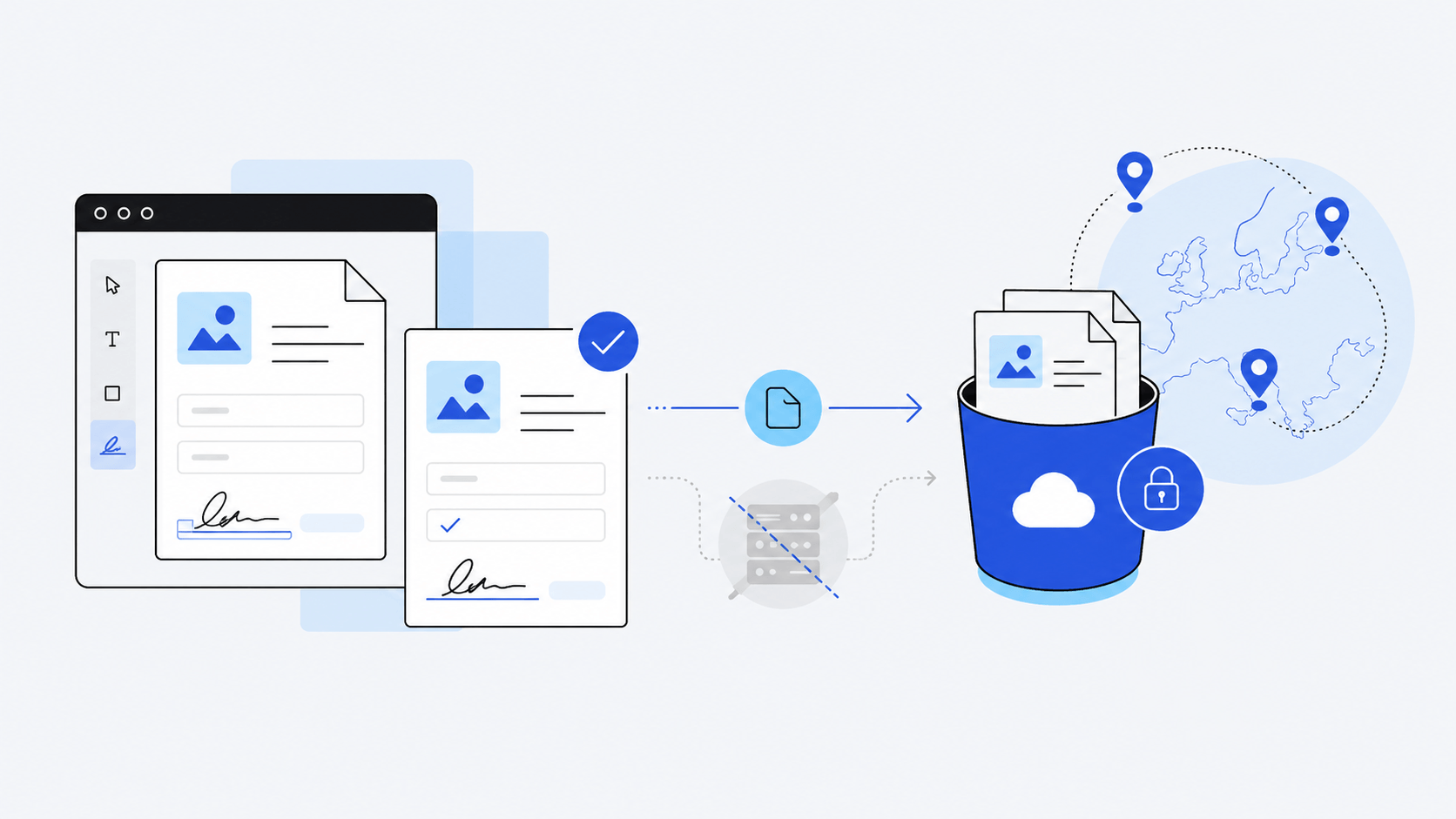
As an alternative to AWS S3, Azure Blob Storage, or SharePoint, you can use your Scaleway Object Storage bucket to store documents and submissions.
Scaleway is a European cloud provider with data centers in Paris, Amsterdam, Warsaw, and Milan. Teams typically pick Scaleway for EU data residency, GDPR compliance, or because they already run infrastructure on Scaleway and want documents to stay in the same provider.
What ends up in your Scaleway bucket
Once Scaleway is connected, two things land in your bucket automatically:
- Source documents: every PDF a user (or you) loads into the editor is uploaded directly to your bucket. SimplePDF holds no copy.
- Filled submissions: when a user signs, edits, or submits a document, the resulting PDF is also written to your bucket.
The upload happens client-side: the browser uploads straight to Scaleway using short-lived, pre-signed URLs. SimplePDF's servers only exchange those URLs, so your documents never transit through SimplePDF infrastructure. The flow is identical to the AWS S3 setup; if you want the full sequence diagram and security model, head over here.
How to configure your own Scaleway Object Storage
Configuring your own Scaleway Object Storage bucket is available with the PRO plan
In Scaleway
In order to store documents on Scaleway Object Storage, you need a bucket and an API key with read/write/delete permissions on that bucket.
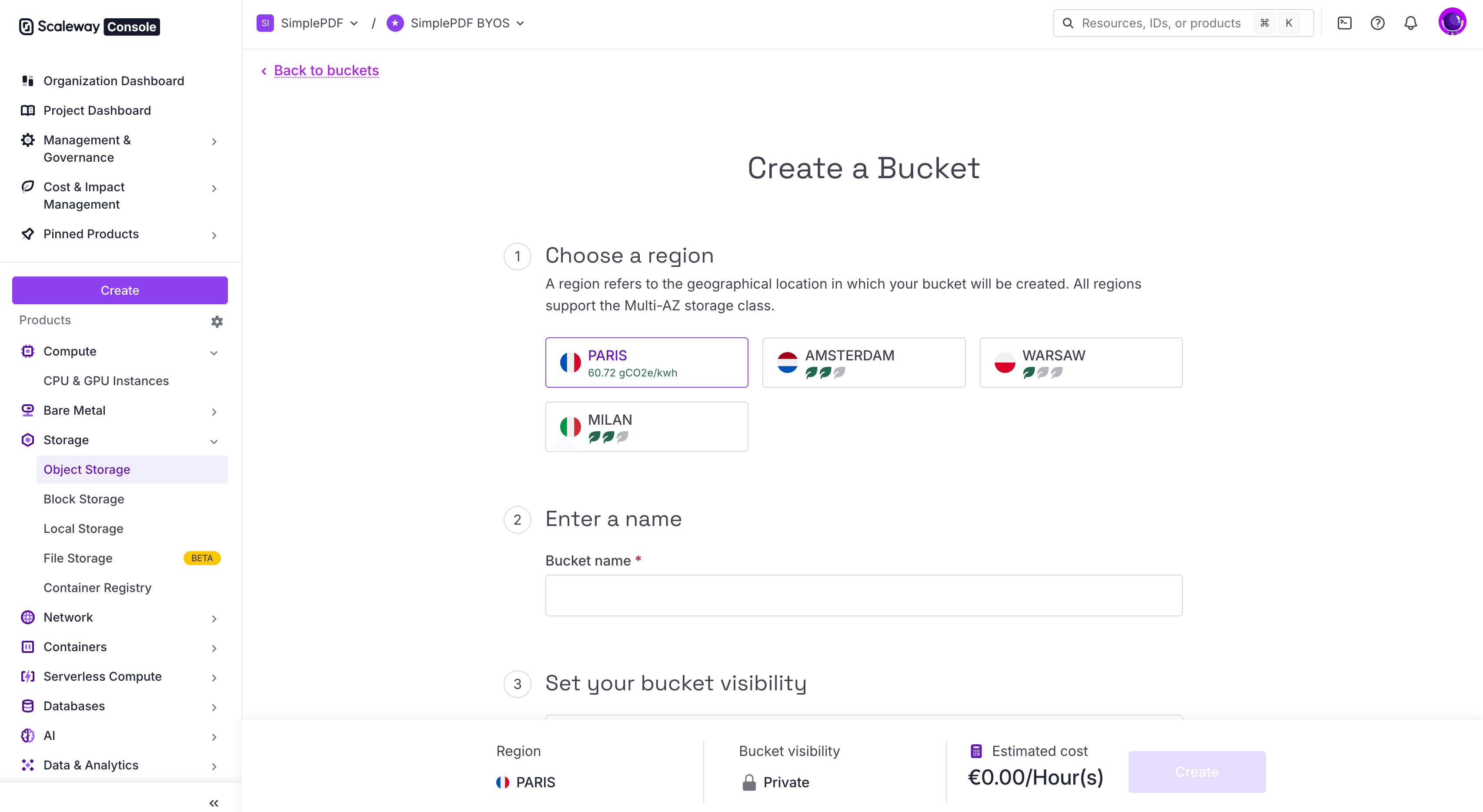
- Create (or choose) a bucket in the region of your choice (
fr-par,nl-ams,pl-waw, orit-mil). Keep the bucket visibility set to Private (the default). Never flip it to public. A public Scaleway bucket leaves every document and submission you store there fully exposed to anyone on the internet, including search engine crawlers. SimplePDF uploads via short-lived, authenticated, pre-signed URLs, so public access adds zero functionality and only opens the door to a data leak.
-
Open IAM & API keys from the user menu in the top-right corner of the Scaleway console.
-
Create a dedicated IAM application for SimplePDF. Going through an application (rather than your own user) is the secure default: it grants only what SimplePDF needs, survives team-member changes, and can be revoked without affecting anyone else.
- Open the Applications tab and click + Create application.
- Name it
simplepdf-byos(or anything you'll recognize). Leave the policy field empty for now (Scaleway labels it optional at this step, but an application without a policy has no permissions; we'll attach one in the next step). - Click Create application.
- Create a policy that grants the application scoped Object Storage permissions:
-
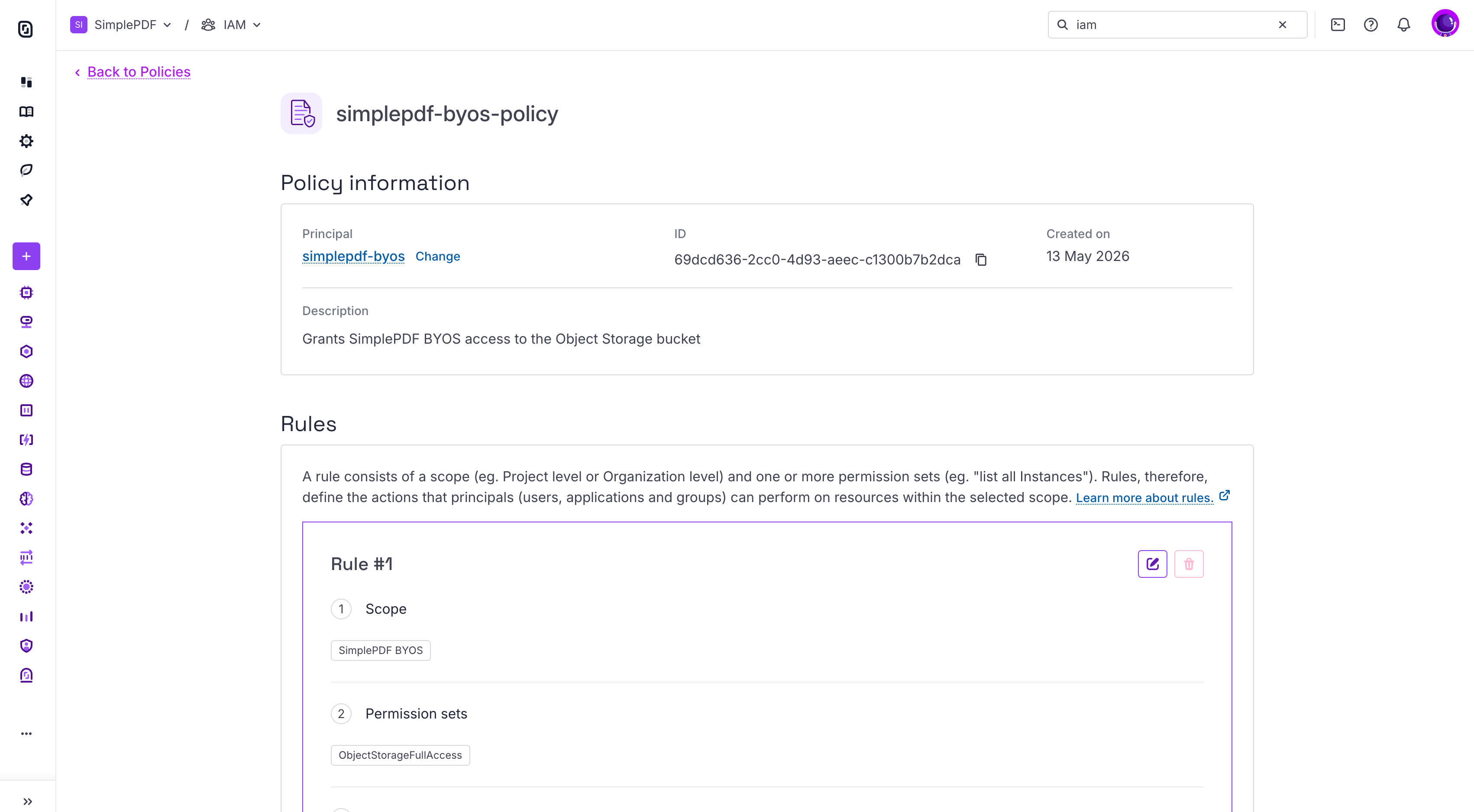
Open the Policies tab and click + Create policy. Name it
simplepdf-byos-policyand add a description likeGrants SimplePDF BYOS access to the Object Storage bucket. -
Under Principals, select the
simplepdf-byosapplication you just created. -
The policy needs two rules, one for the bucket (project-scoped) and one for IAM (organization-scoped).
Rule #1 (bucket access):
-
Scope: Access to resources → pick the Project that owns your bucket.
-
Permission sets (under the Storage section): the choice depends on whether you want SimplePDF to be able to read your bucket or not:
- Default (read + write): tick ObjectStorageFullAccess. SimplePDF can list, read, upload, delete, and configure CORS on the bucket.
- Write-only (recommended if you do not want SimplePDF to read your documents at any point, the strictest setup): tick ObjectStorageObjectsWrite, ObjectStorageObjectsDelete, and ObjectStorageBucketsWrite. SimplePDF can upload, delete, and configure CORS, but cannot list or read objects. Scaleway has no preset for this combination, so you tick the three permission sets individually.
If you pick write-only, make sure to also tick Write permissions only in the SimplePDF storage configuration form below so SimplePDF never attempts a read operation.
Rule #2 (IAM read):
- Click + Add a rule.
- Scope: Access to Organization features.
- Permission sets (under the Security & Identity section): tick IAMReadOnly. This lets SimplePDF read your API key's expiration date so it can send reminder emails 7 days and 1 day before the key lapses.
-
-
Click Create policy.
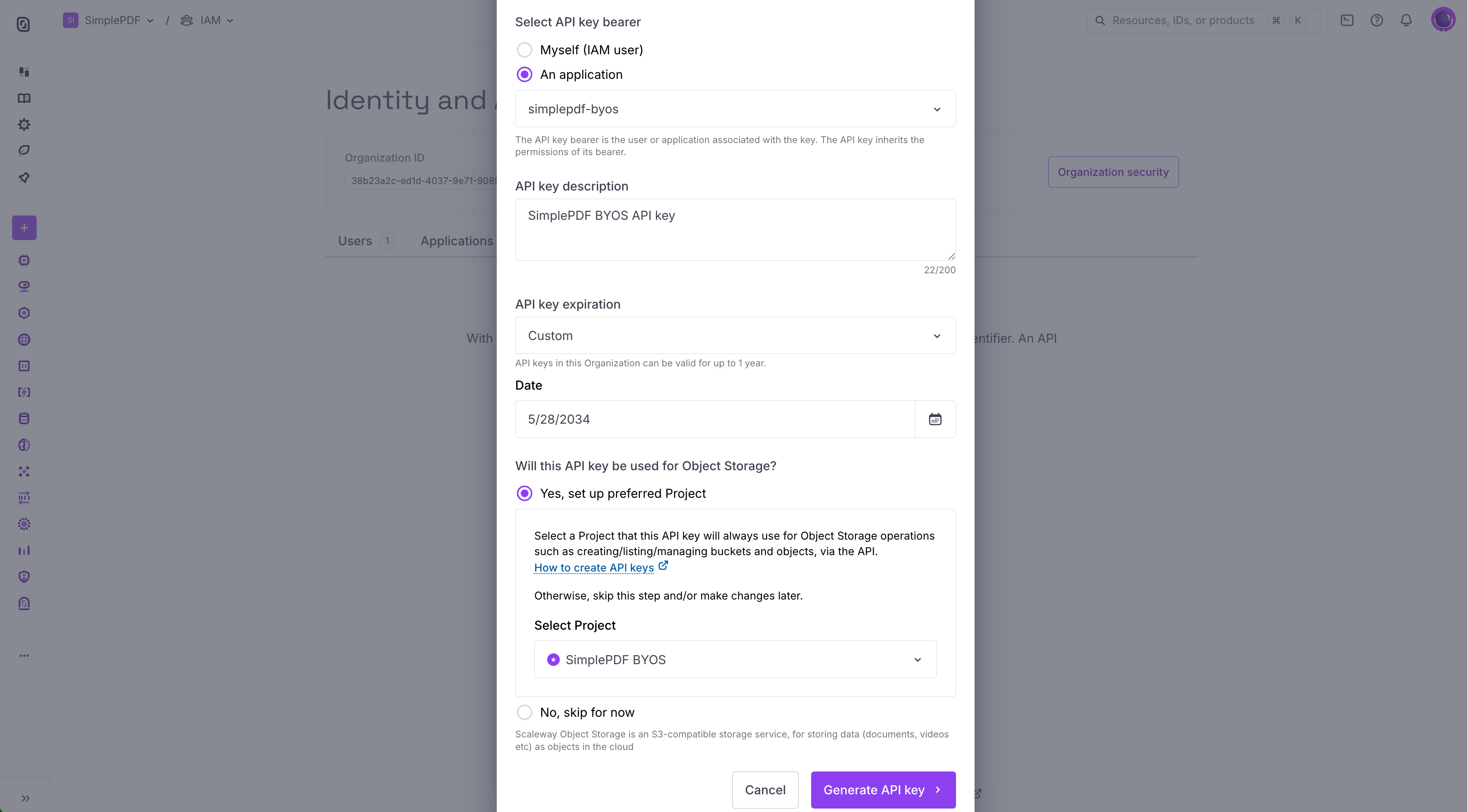
- Generate the API key:
- Open the API keys tab and click + Generate API key.
- For the bearer, select the
simplepdf-byosapplication you just created. - Add a description like
SimplePDF BYOS API key. - When prompted "Will this API key be used for Object Storage?", choose Yes and select the Project that owns your bucket as the preferred Project.
- Pick an expiration that fits your security policy. SimplePDF sends reminder emails 7 days and 1 day before the API key expires, so you can rotate it without service disruption.
- Copy the Access Key and Secret Key immediately - the Secret Key won't be shown again.
CORS configuration is handled for you. Scaleway does not expose CORS in the console, but SimplePDF detects Scaleway endpoints and applies the required CORS rules to your bucket automatically when you save the storage configuration. The rules track the Write permissions only field configured below: GET, PUT, and DELETE are allowed when SimplePDF has read access, and GET is dropped when you set the bucket to write-only. No CLI or AWS SDK required.
If your API key cannot configure CORS (typically because the policy is missing ObjectStorageBucketsWrite, which is included in both the default and the write-only permission grants described in step 4) or the bucket cannot be reached, SimplePDF will reject the save and surface the error so you can fix it before any submission is uploaded.
In SimplePDF
- Log in to your account
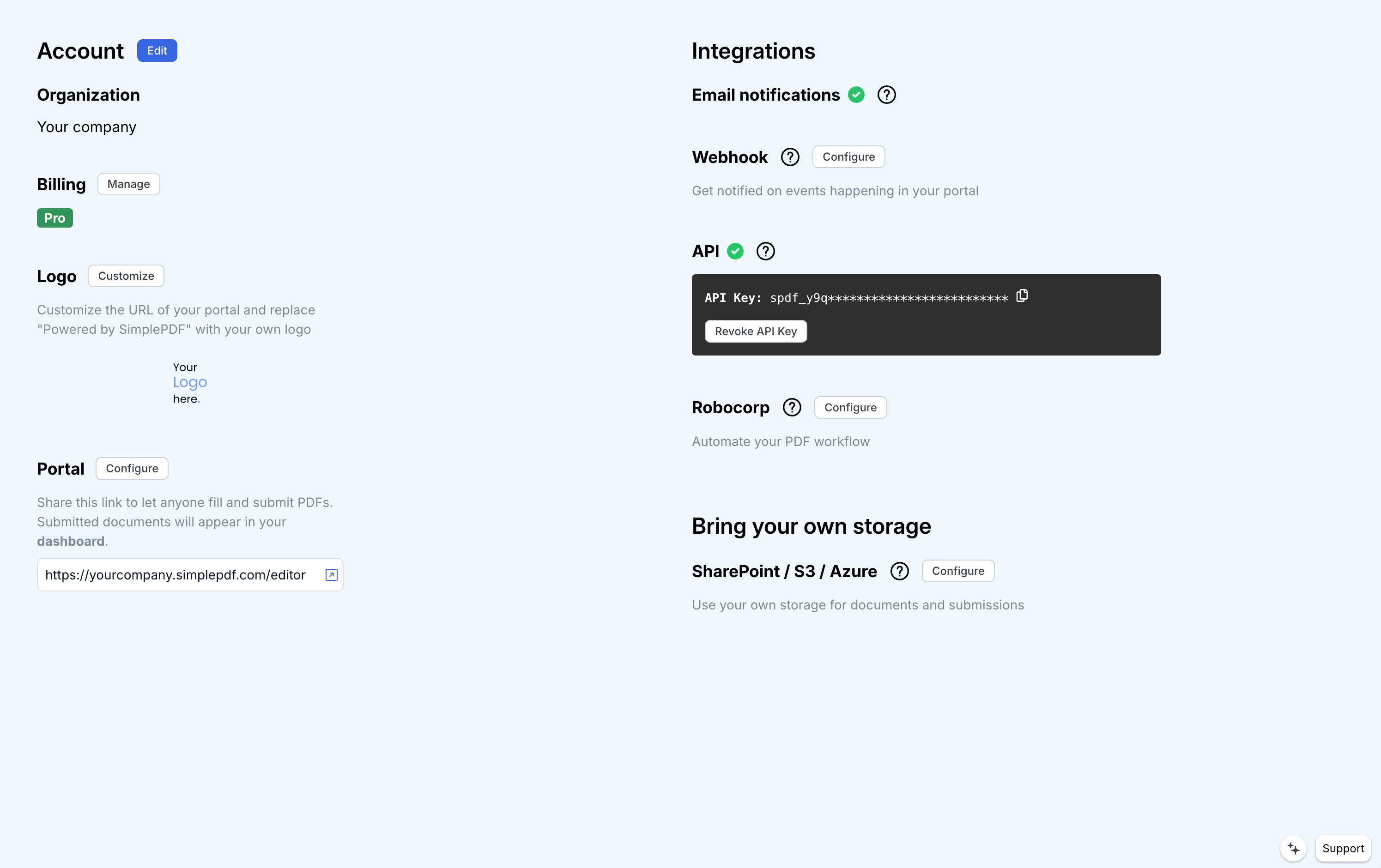
- Navigate to the account settings view
-
Click
Update configuration -
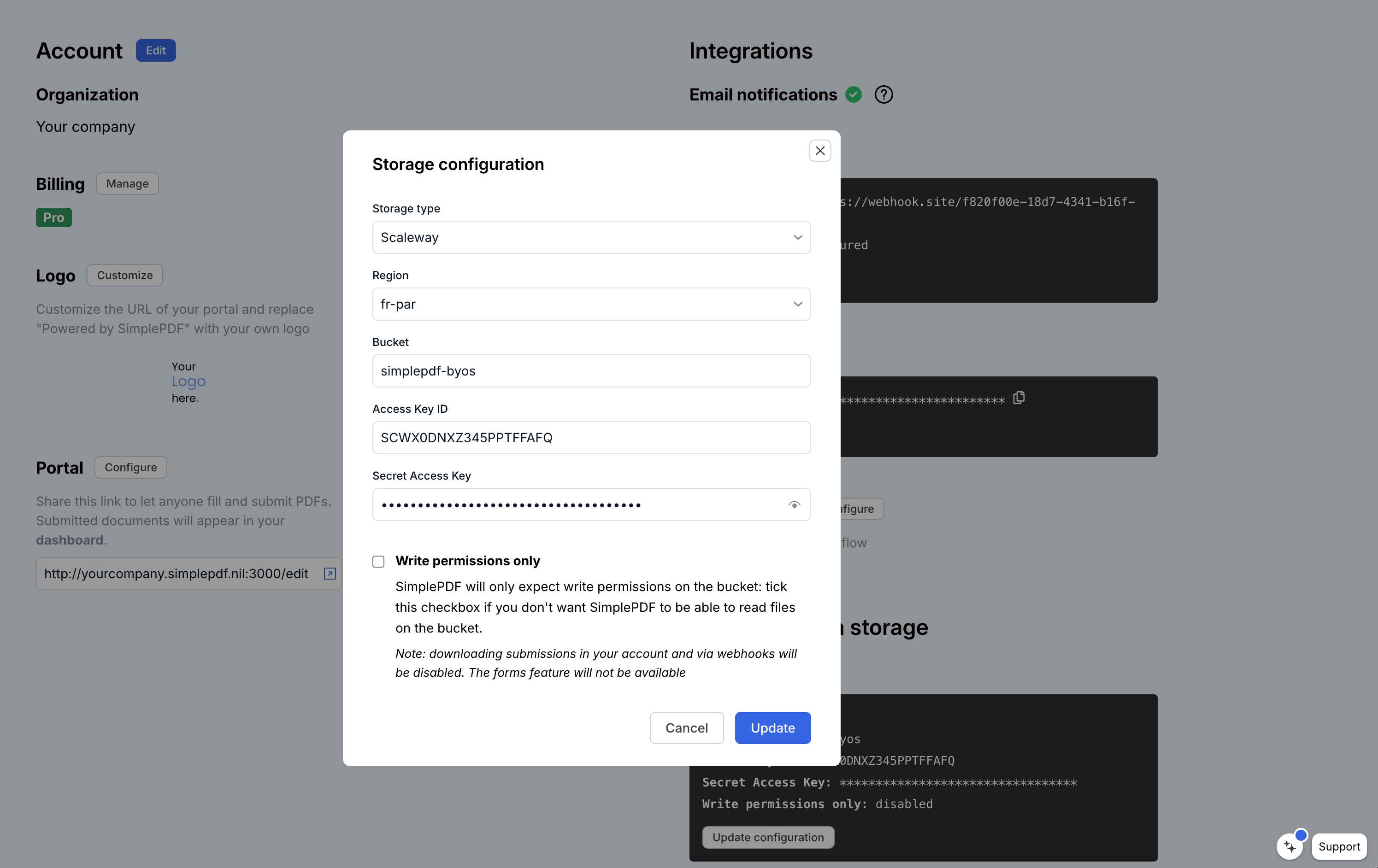
Select Scaleway as the storage type and fill in your details:
Region: pick your bucket's region: fr-par (Paris), nl-ams (Amsterdam), pl-waw (Warsaw), or it-mil (Milan). SimplePDF derives the Object Storage endpoint URL from this selection, so there is no separate endpoint field to fill in.
Bucket: name of your Scaleway bucket
Access Key: the Access Key from the API key you generated in step 5
Secret Key: the Secret Key from the API key you generated in step 5
Write permissions only: tick this box if you do not want SimplePDF to be able to read documents from your bucket. When ticked, the auto-applied CORS rules will allow only PUT and DELETE (no GET), matching what the editor needs to upload and remove files without reading them.
- Click
Update
Permissions required on your Scaleway bucket
The IAM policy you attach in step 4 determines what SimplePDF can do on your bucket. Pick the mode that matches what you want.
Every policy you attach needs two rules:
- Project-scoped rule (covers the bucket): pick the project that owns your bucket and tick one of the bucket permission set combinations below from the Storage section.
- Organization-scoped rule (covers IAM read): set the scope to Access to Organization features and tick IAMReadOnly under the Security & Identity section. This is required for SimplePDF to read your API key's expiration date and send reminder emails before it lapses.
Default (read + write)
In the project-scoped rule, under Storage, tick ObjectStorageFullAccess. SimplePDF can list, read, upload, delete objects, and configure CORS on the bucket.
Write-only
In the project-scoped rule, under Storage, tick ObjectStorageObjectsWrite, ObjectStorageObjectsDelete, and ObjectStorageBucketsWrite. SimplePDF can upload, delete objects, and configure CORS, but cannot list or read objects. Scaleway has no preset for this combination, so you tick the three permission sets individually.
Underlying S3 API actions
For reference, the underlying S3 actions SimplePDF performs on the bucket are:
s3:GetObject: to display the documents and submissions in the interface and when sending webhooks (default mode only)s3:PutObject: to upload the documents and submissionss3:DeleteObject: to delete the uploaded documents and submissionss3:PutBucketCORS: granted once when SimplePDF auto-configures CORS on your bucket at save time
That's it! Your documents and submissions are now automatically stored in your own Scaleway Object Storage bucket!
If you have any questions, feel free to reach out to support@simplepdf.com