How to connect SharePoint as your storage for PDF submissions
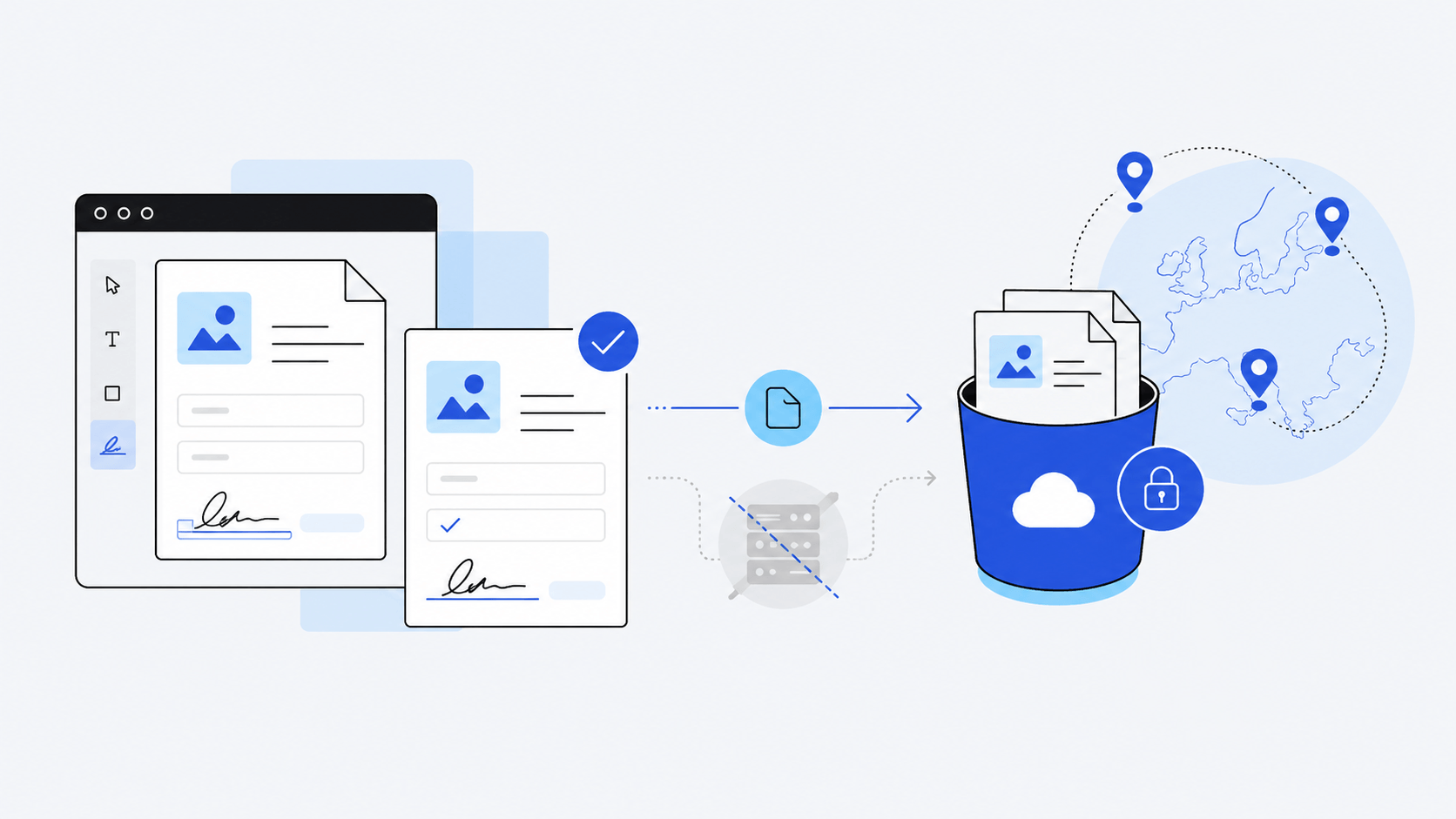
As an alternative to AWS S3, Azure Blob Storage, or Scaleway Object Storage, you can connect your SharePoint Online document library to store documents and submissions.
You may be interested in bringing your own storage (BYOS) for various reasons, such as compliance to specific rules in your country or industry or because your team already uses SharePoint for document management.
How the upload works
The upload mechanism is identical across all storage providers. If you're interested in the details and security model, head over here.
The gist is that the upload happens on the client, with the server only exchanging upload and download links: your documents never transit via SimplePDF servers.
Prerequisites
Connecting SharePoint requires:
- A SimplePDF Premium plan
- A Microsoft 365 tenant with SharePoint Online
- An Entra ID (Azure AD) app registration with the right permissions
Step 1: Register an app in Microsoft Entra ID
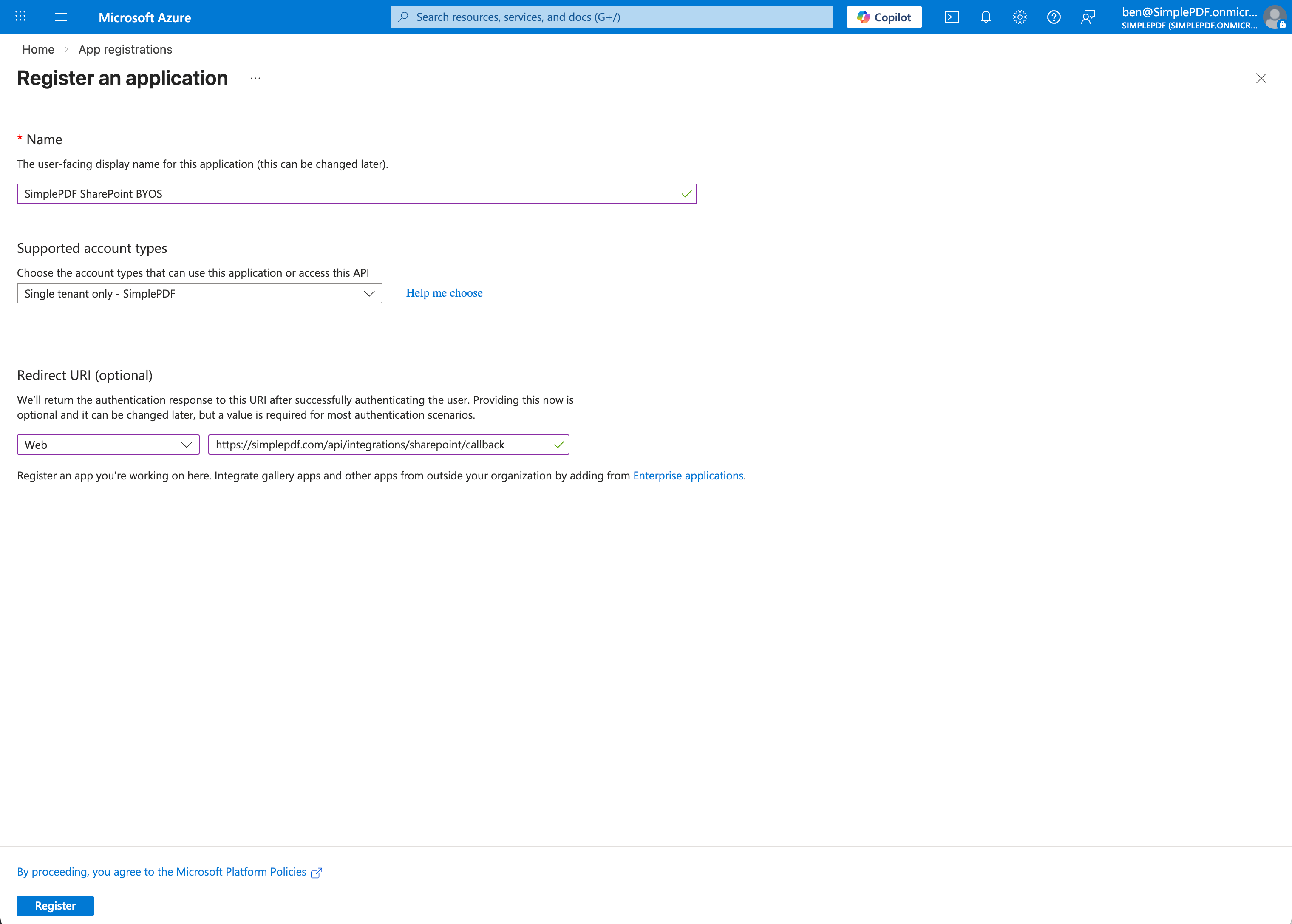
- Go to Azure Portal > App registrations and click New registration
- Fill in the registration form:
- Name:
SimplePDF(or any name you prefer) - Supported account types: Accounts in this organizational directory only (single tenant)
- Redirect URI: select Web and enter
https://simplepdf.com/api/integrations/sharepoint/callback
- Name:
- Click Register
Create a client secret
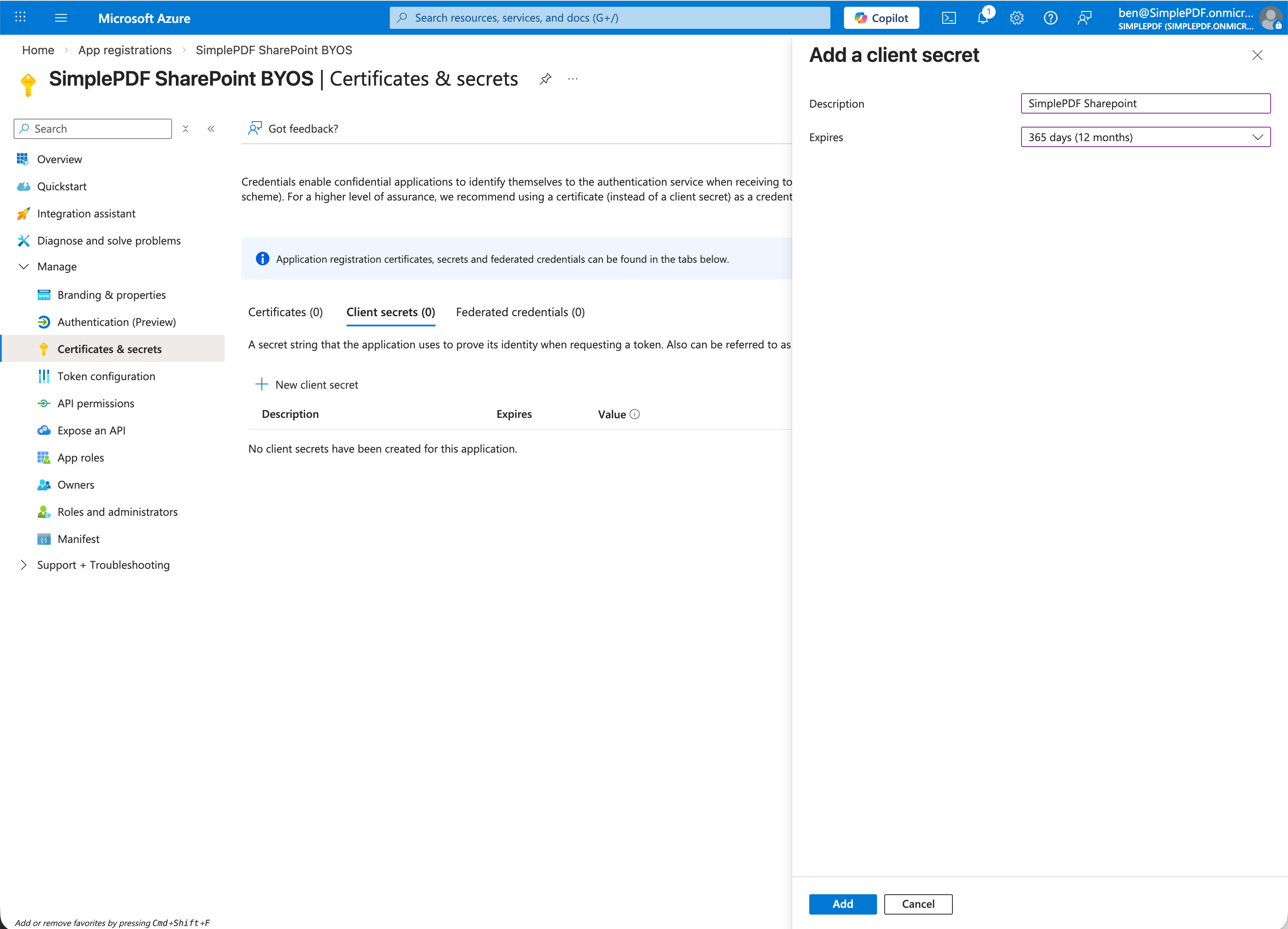
- In your newly registered app, go to Certificates & secrets > New client secret
- Set a description (e.g.
SimplePDF) and choose an expiry. We recommend selecting the longest available expiry (24 months) to avoid disruption. When the secret expires, the SharePoint connection will stop working and you will need to create a new secret and re-authenticate in SimplePDF. - Copy the secret value immediately - it won't be shown again
Add API permissions
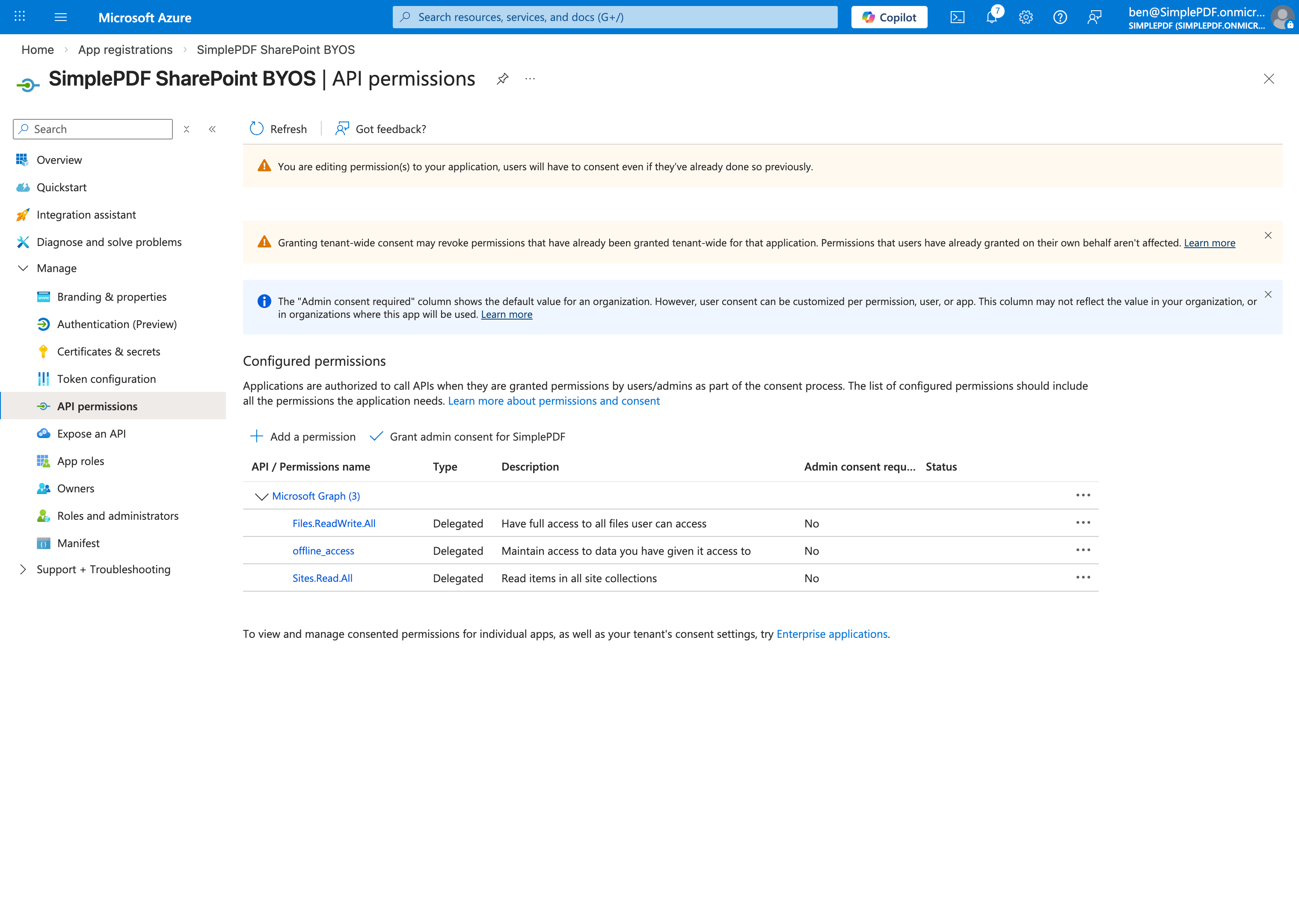
- Go to API permissions > Add a permission > Microsoft Graph > Delegated permissions
- Add the following permissions:
Sites.Read.All- lets SimplePDF list your SharePoint sites so you can pick oneFiles.ReadWrite.All- lets SimplePDF upload and download documents in your selected libraryoffline_access- keeps the connection active without re-authenticating
You do not need to grant admin consent. Each user consents individually during the OAuth flow.
Note your credentials
From the app's Overview page, you'll need:
- Application (client) ID
- Directory (tenant) ID
Along with the Client Secret you copied earlier.
Step 2: Connect SharePoint in SimplePDF
- Log in to your SimplePDF account
- Navigate to account settings
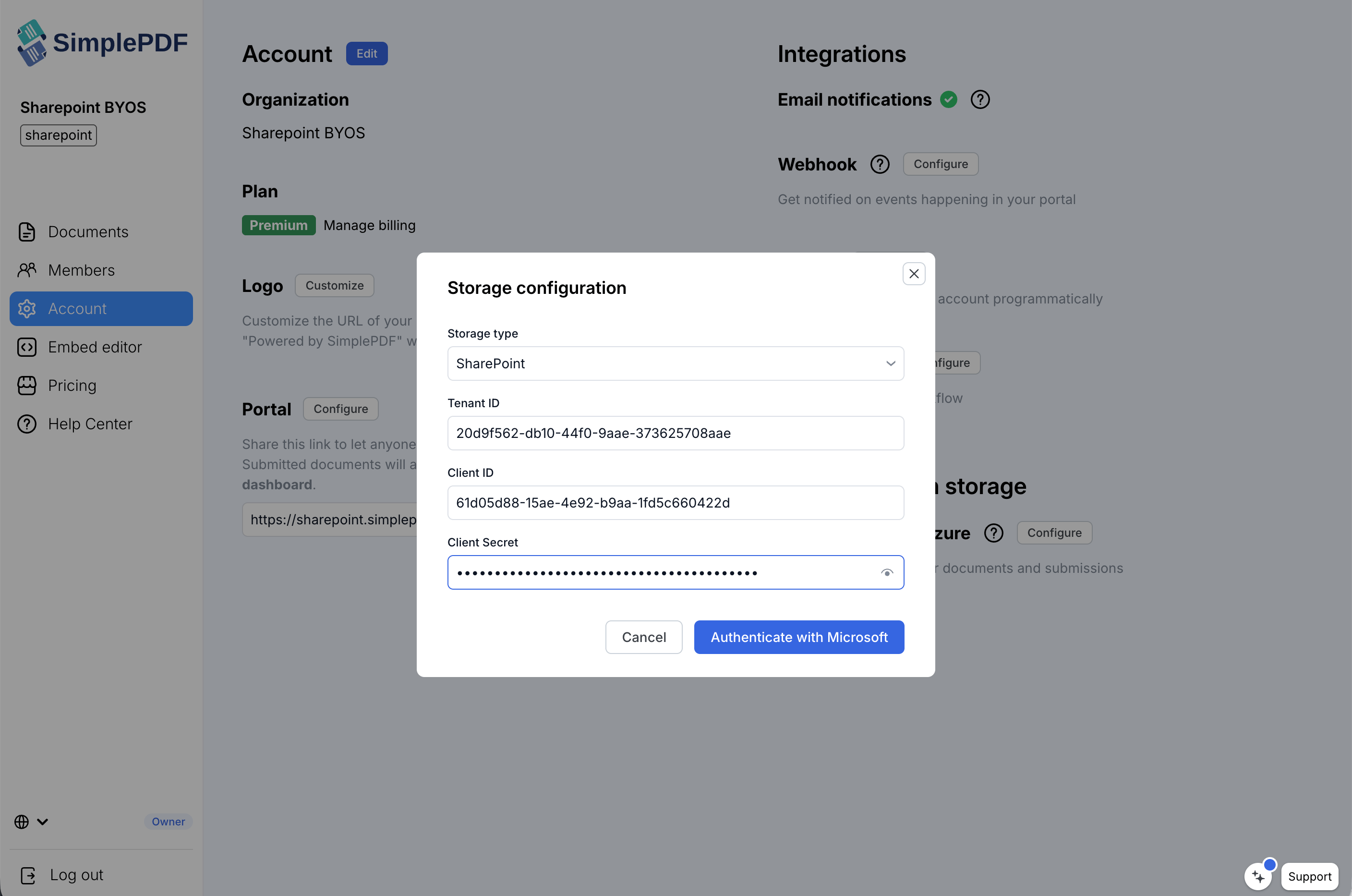
- In the Bring your own storage section, click Configure
- Select SharePoint from the storage type dropdown
- Enter your three credentials: Tenant ID, Client ID, and Client Secret
- Click Authenticate with Microsoft
- Sign in with a user from your Microsoft 365 tenant and grant consent
Step 3: Select a site and document library
After authenticating, you'll be redirected back to SimplePDF:
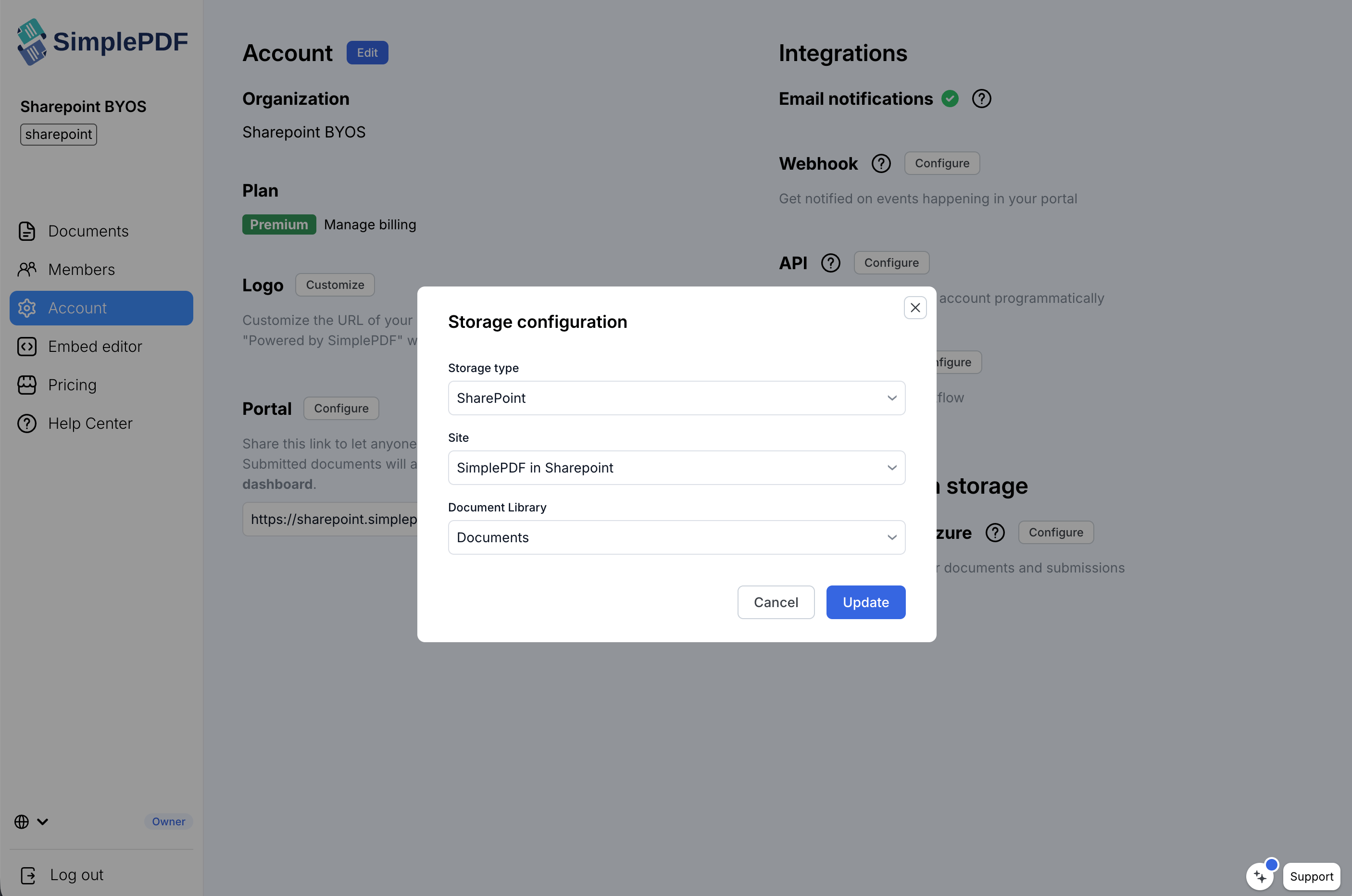
- Select your SharePoint site from the dropdown
- Select the document library where submissions should be stored
- Click Update
SimplePDF runs a diagnostic test (upload + download) to verify the configuration. If both succeed, you're all set.
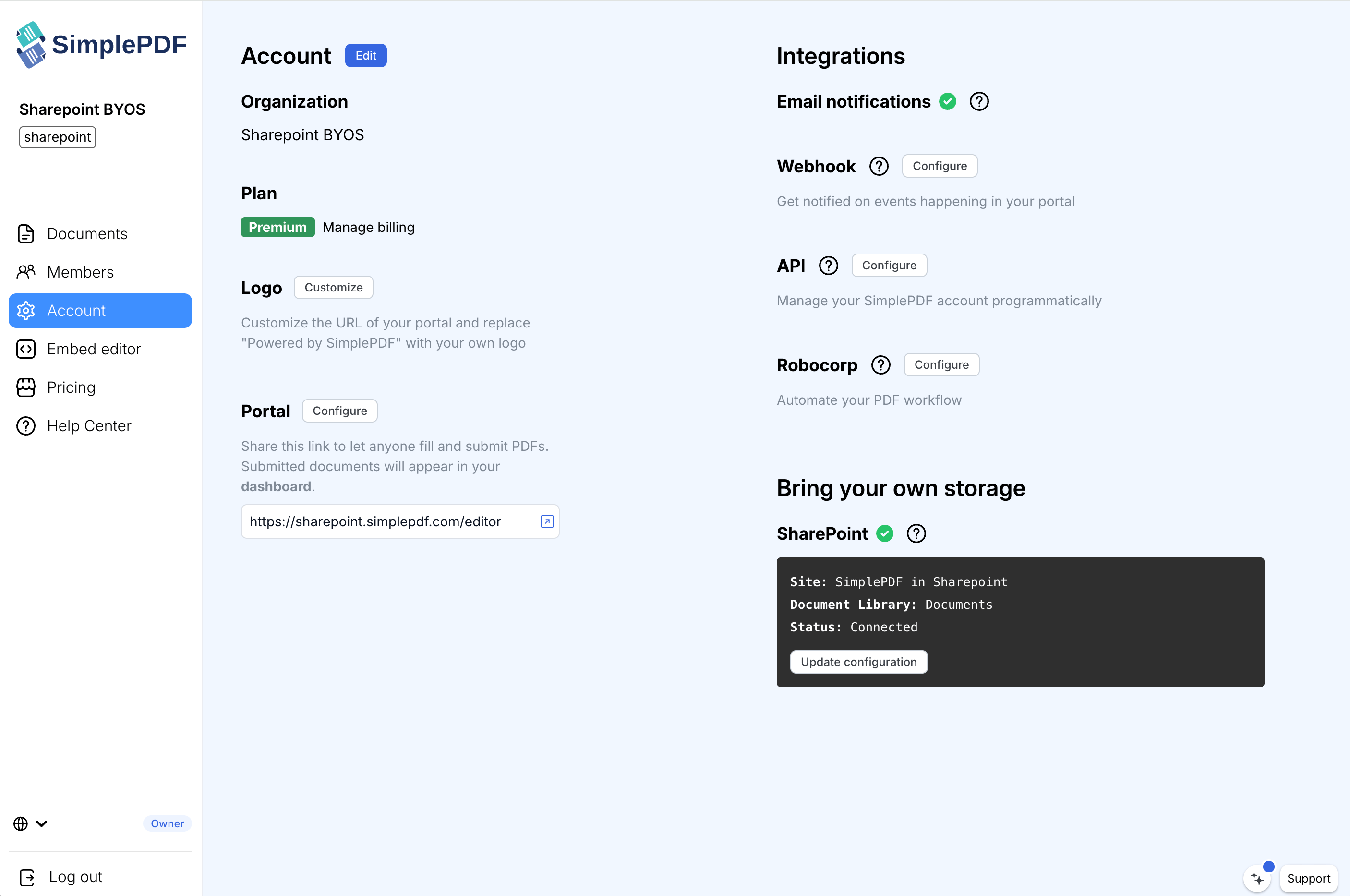
Submitted documents will be stored under the path simple-pdf/<company_id>/ in your selected document library.
Troubleshooting
Sites dropdown is empty: SharePoint search indexing may not be active on freshly provisioned tenants. Wait a few minutes and try again.
Diagnostic test fails: verify that the app has the correct API permissions (Sites.Read.All, Files.ReadWrite.All, offline_access) and that the user who consented has access to the selected site.
Uploads suddenly stopped working: your client secret may have expired. In the Azure Portal, go to your app's Certificates & secrets page, create a new secret, then re-authenticate in SimplePDF by clicking Configure on the storage section.
"Inactive - upgrade to Premium" status: SharePoint BYOS requires the Premium plan. S3 and Azure Blob Storage are available on the Pro plan.
That's it! Your documents and submissions are now stored directly in your SharePoint document library.
If you have any questions, feel free to reach out to support@simplepdf.com