How to convert a PDF into a fillable form and collect the answers
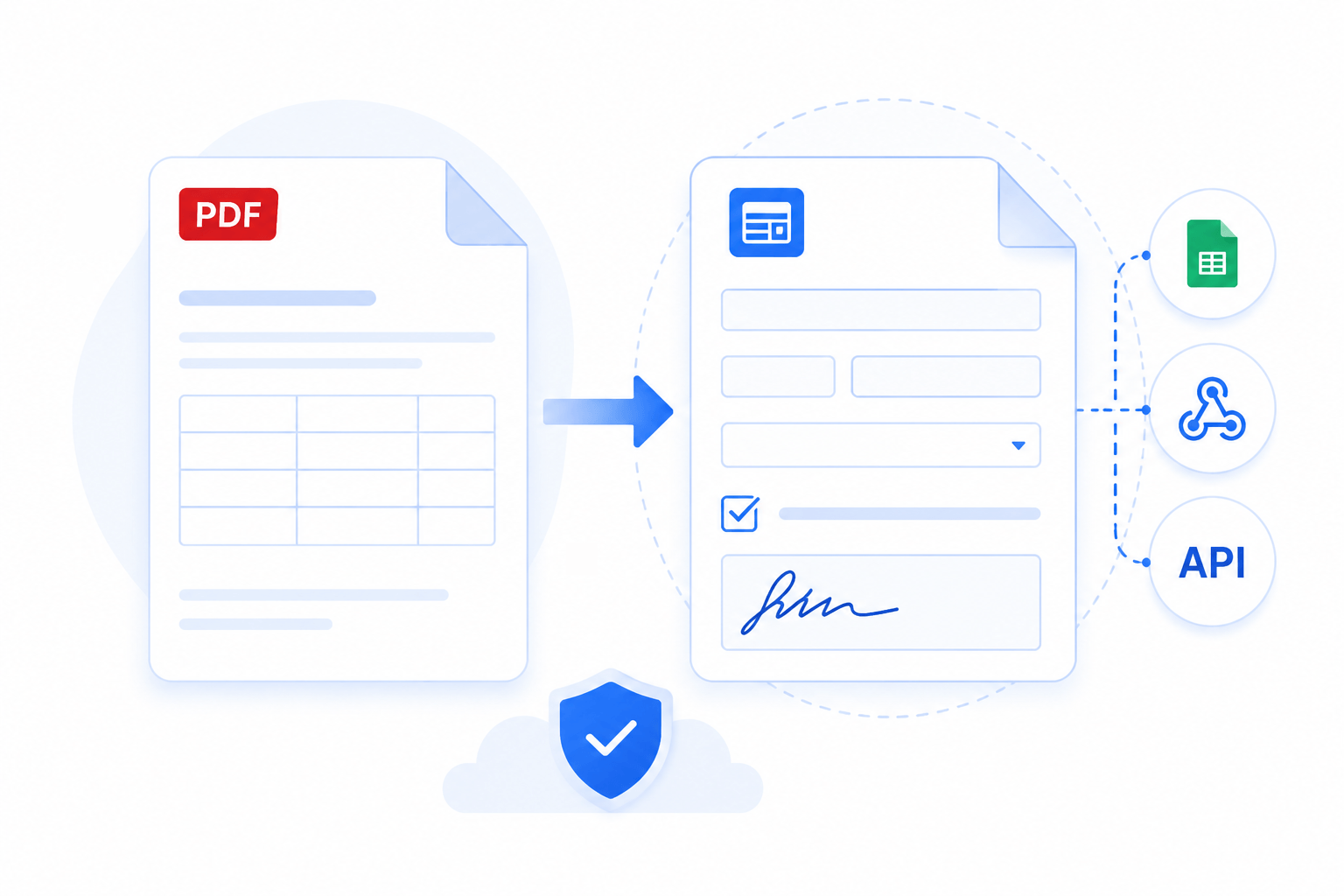
You have a PDF that people need to fill in: a contract, a job application, an intake sheet. You want them to complete it online and you want their answers back as data you can sort and process, not a stack of flat PDFs.
Only three steps: that's what it takes to turn any PDF into a form and collect answers.
#Turn your PDF into a form
Start from the Documents section of your account:
- Click
New Documentand pick a PDF from your device.
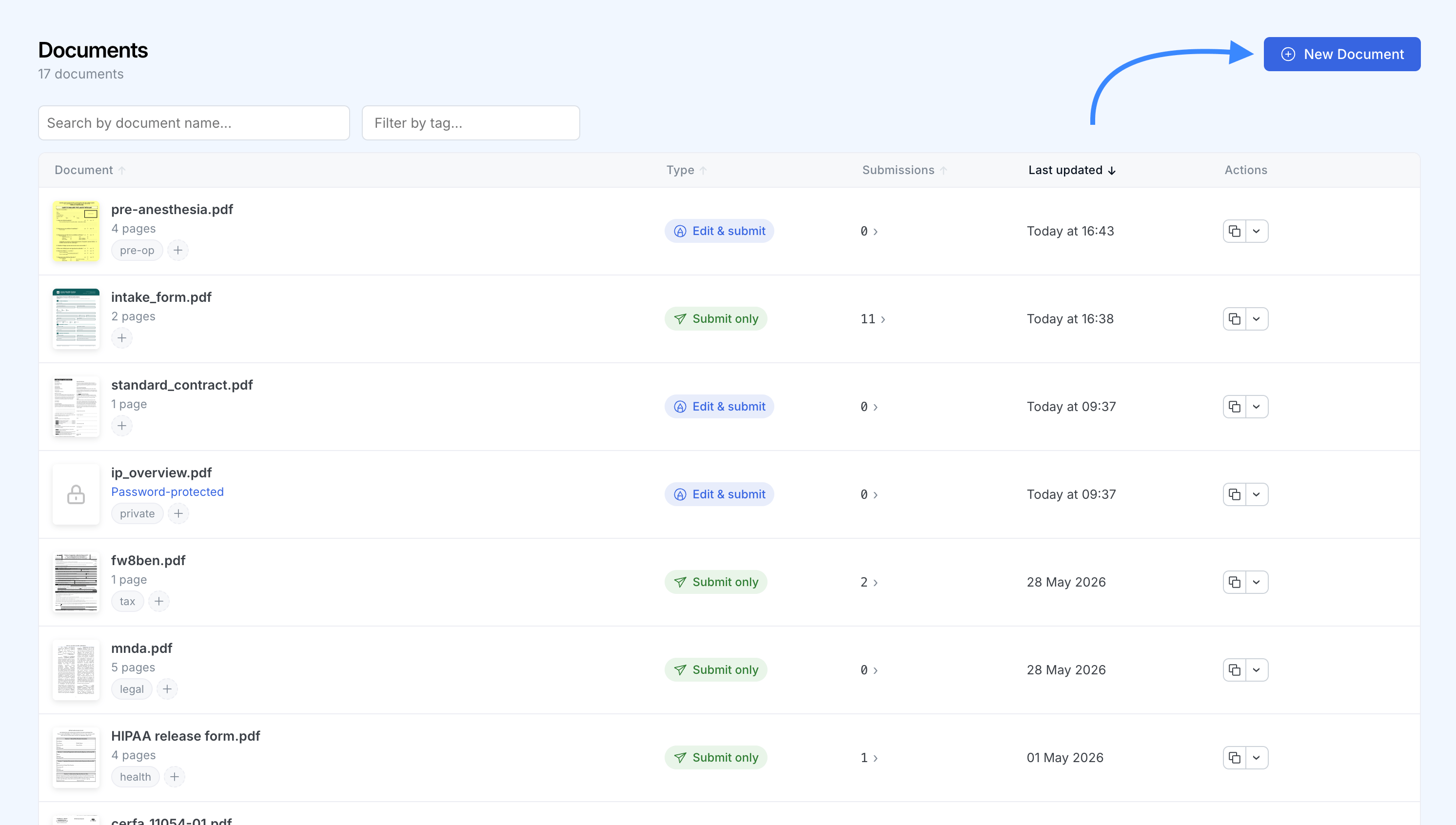
- SimplePDF reads the file and recognizes any fillable fields already built into it, so they are ready to use right away.
- Open the document to see the detected fields on the page.
If your PDF already carries form fields, that is all it takes to make it fillable.
#Add or adjust fields
You can add or adjust fields yourself:
- Open the document and pick a field type from the toolbar: text, checkbox, signature, or image.
- Click on the page to place the field, then drag to position and resize it.
- Give each field a clear name. The name becomes the column header when you collect the data, so
Full namereads better than a generic label.
#Set required and read-only fields
You can mark a field as required so people cannot submit until they fill it, and you can give a field a default value and lock it as read only when the information should appear on the document but not be edited.
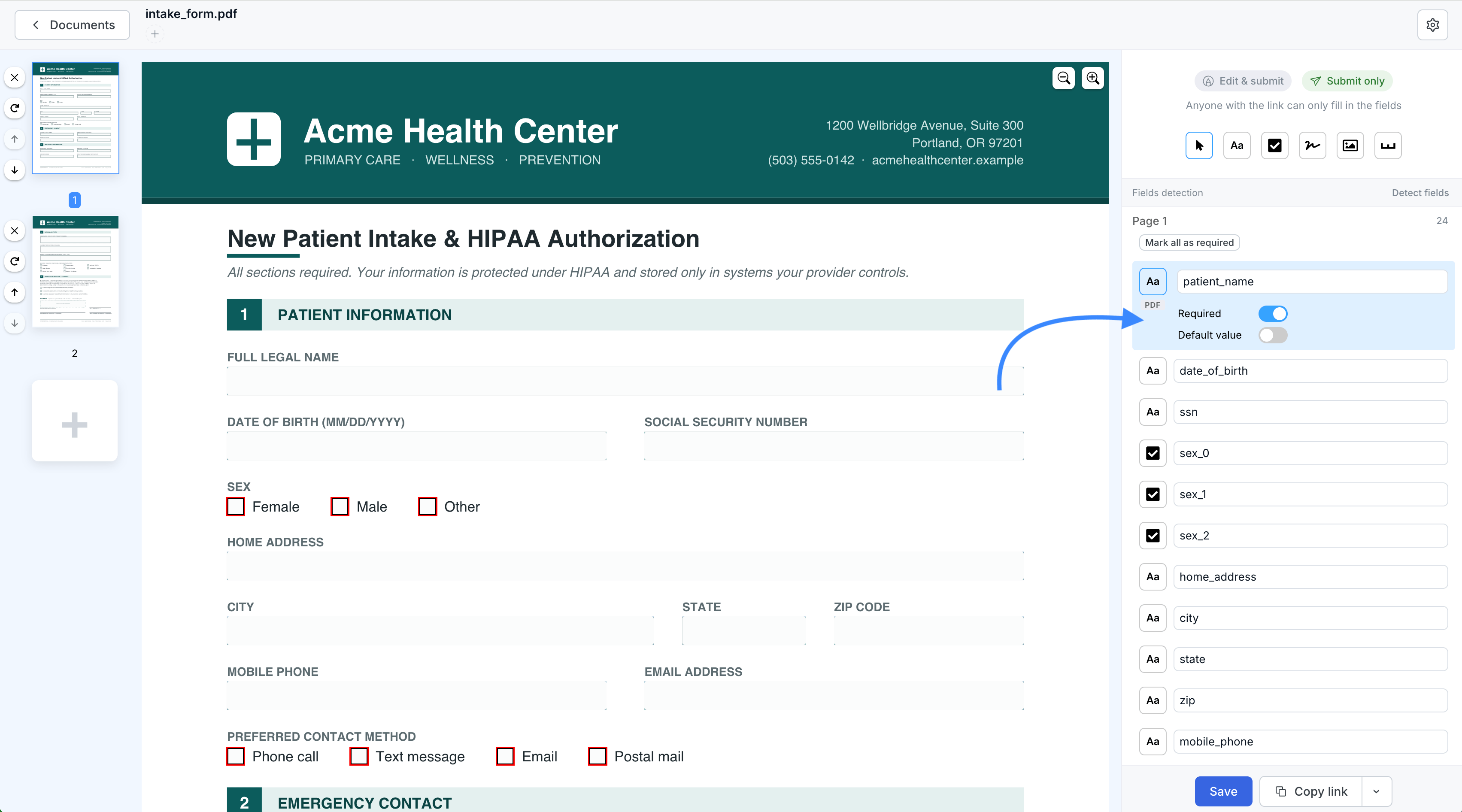
For the full walkthrough, see how to add required fields to PDF forms.
#Share the link to collect submissions
Your form only collects answers once people can open it. From the Documents list or the document itself, click Copy link to get its shareable URL.
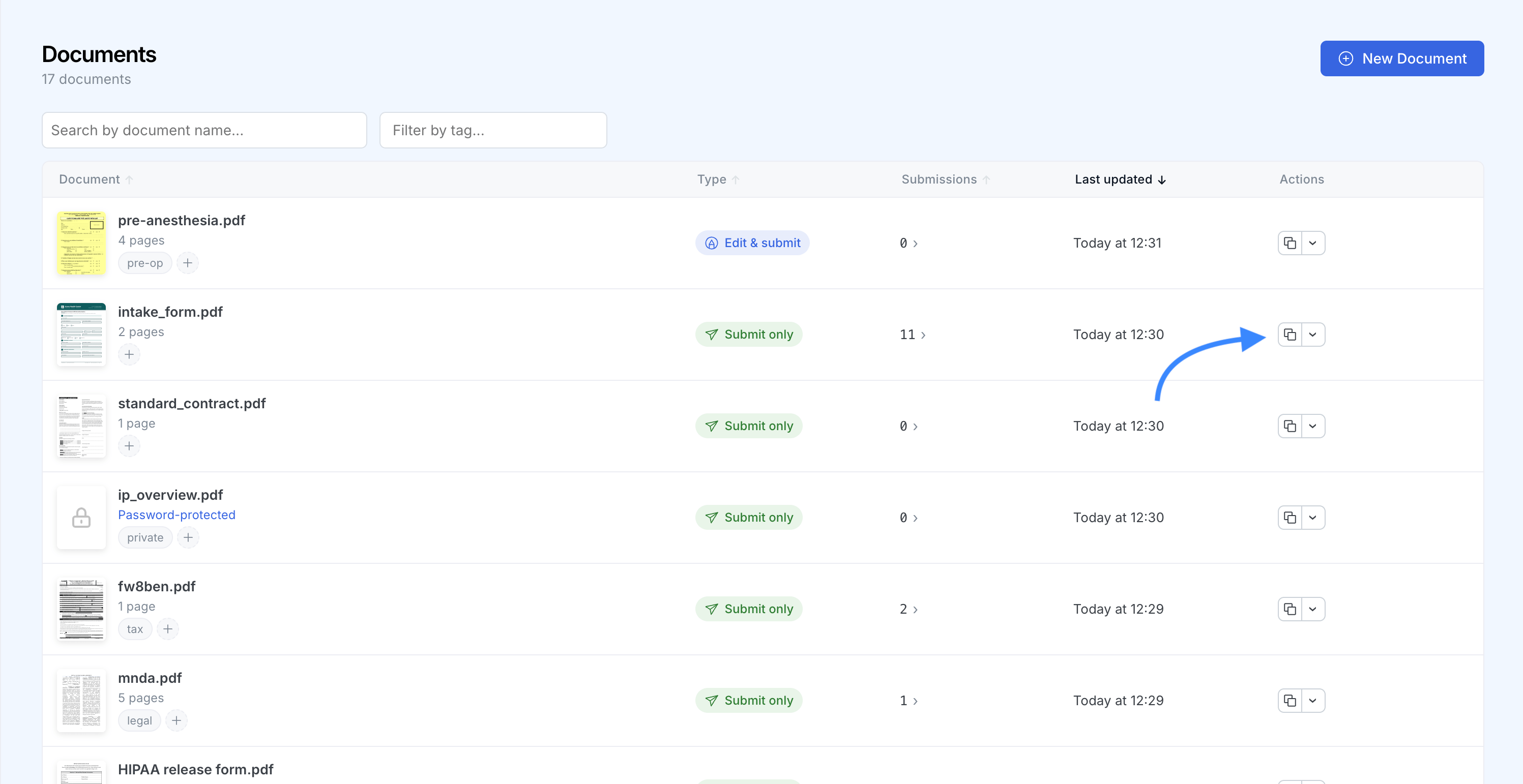
Send that link by email, chat, or a button on your site, or embed the form directly in a page: use the iframe or React snippet next to the copy button, or the WordPress plugin. Whoever opens it fills the form and submits it in the browser, no SimplePDF account required.
Each submission that comes back through the link is captured as structured data, which you collect next.
#Collect the structured data
Every time someone submits the form, SimplePDF captures the value of each field as structured data. This covers every field, whether it was built into the original PDF or added in SimplePDF. There are three ways to get it.
#Download it from the dashboard
- Open the document and click its submissions count to expand the list of submissions.
- Next to a submission, open the download menu and choose
Download as CSVorDownload as Excel. - To export every submission at once, use the
Export allbutton above the list and pick CSV or Excel.
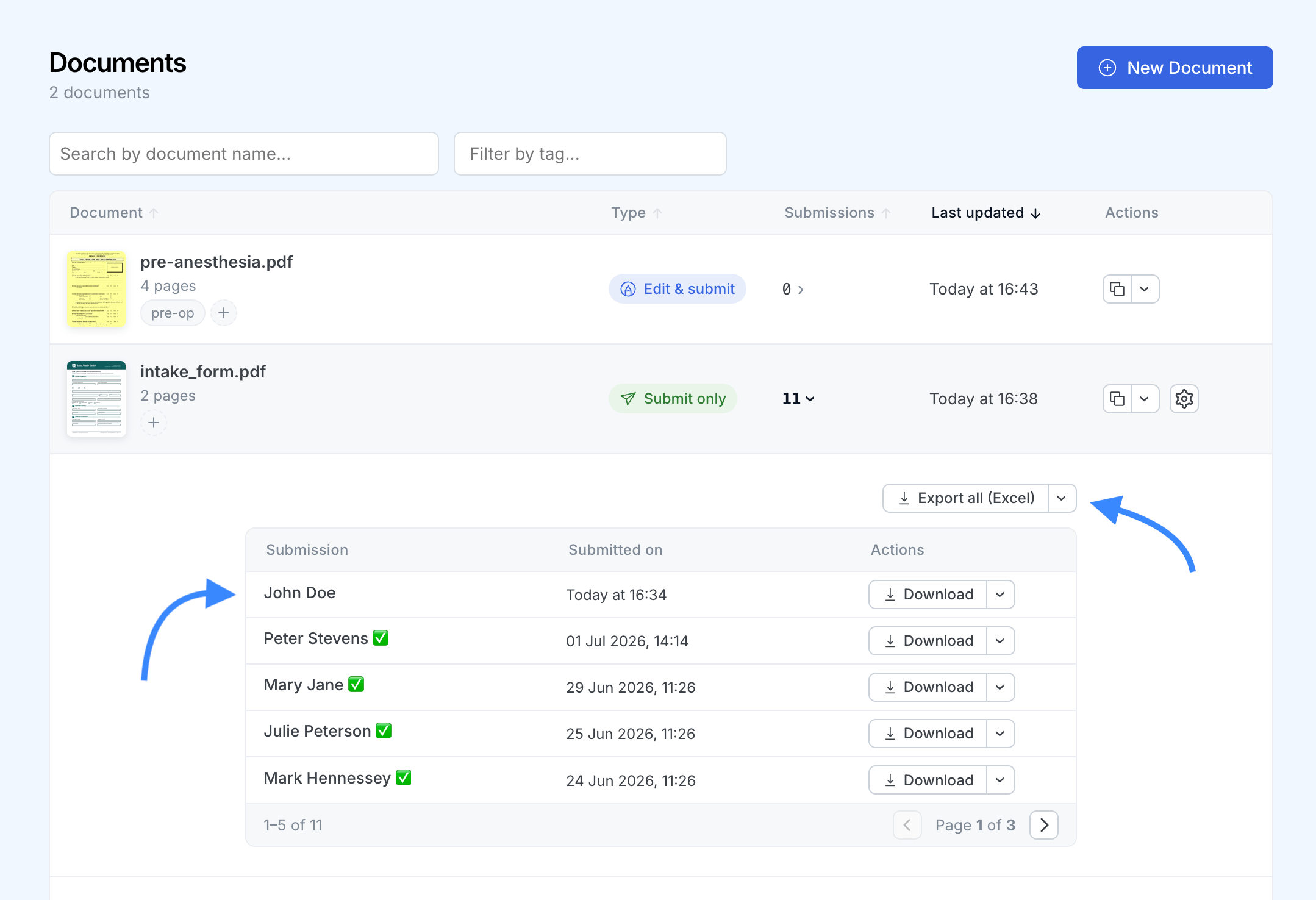
Each field becomes a column and each submission a row. Signature and image fields export as a placeholder rather than the raw image data, and the file is built in your browser, not on our servers.
To keep the list readable, give each submission a name instead of a timestamp: pick a field to name them automatically, or rename any submission from its details panel. The name then follows the submission into the list, the notification email, the downloaded filename, and this export. See how to name your submissions.
#Send it to a webhook
The same structured data is delivered to your webhook the moment a submission arrives, ready to drop into a spreadsheet, a database, or your own app. See how to configure webhooks for PDF form submissions.
#Read it from the API
Every submission's structured data is also available any time from the SimplePDF API (Premium plan), so you can pull it on your own schedule.
That's it! Your PDF is now a fillable form, and every submission comes back as structured data you can download as CSV or Excel, receive on a webhook, or read from the API.
If you have any questions, feel free to reach out to support@simplepdf.com