How to share a PDF document safely with SimplePDF
Uploading a form to SimplePDF should never publish it by accident. A document you upload normally starts with its link off: nobody can open it through its link until you turn on public access in its Share window, except through a recipient link you send, and you can turn the link off again at any time. You turn access on and off from your dashboard; doing it from the API needs the Premium plan.
#Who can open a document
A document's access decides who can open it through its link, standalone or embedded on a website:
| Access | Through the document link or an embed | From your dashboard or the API |
|---|---|---|
| Restricted (the link is off) | Nobody, including the members of your organization, except through a recipient link: the link answers that the document was not found | Your team, as always |
| Public | Anyone who has the link | Your team, as always |
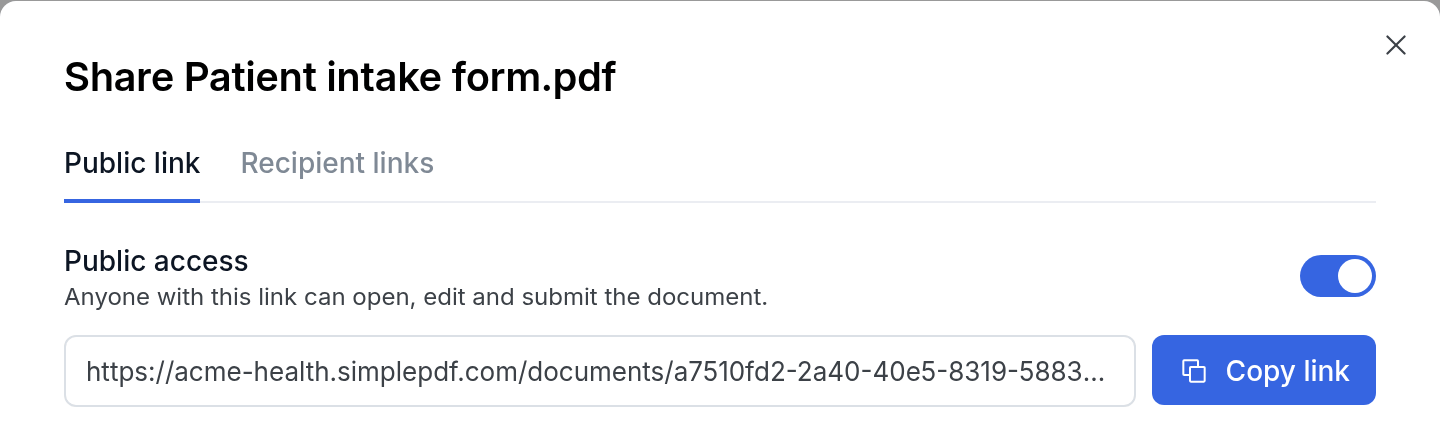
A new document uploaded from your dashboard or opened in your organization's editor normally starts restricted, and documents you uploaded before SimplePDF introduced access may be public: the Public link tab of its Share window tells you which: a public document shows its link with the Public access switch on, a restricted one shows the switch off and The document link is off. A public link is open to anyone who has it: its address is hard to guess, but that is not protection, so keep documents only your team should see restricted.
#Turn on public access to share a document
- In
Documents, clickShareon the document's row, or open the document and clickShare. - On the
Public linktab, switchPublic accesson. The tab now shows the document's link. - Click
Copy linkand send it by email, chat or a button on your site. Whoever opens it fills the form in (or edits it, for an editable document) and submits it in the browser, with no SimplePDF account.
To check what a recipient sees, open the link in a private browser window, where you are signed out. With your own storage, the link only opens the document if that storage allows read access: a write-only connection keeps every visitor out. On such storage the Share window only explains why the document can't be shared, with no Public access switch: allow read access to share it. To restrict a document that is already public in the meantime, change its access from the API, included in the Premium plan.
#Embed the document on your website
On the Public link tab of the document's Share window, under Embed on your site, pick AI agents, React, Iframe, WordPress or Bubble: it shows a ready snippet, or the link to paste into the plugin. These snippets embed the document link, so they only work while public access is on: a notice under the heading says so while the link is off.
#Restrict a document again
Open the document's Share window and switch Public access off on the Public link tab. From the next open on, the link and every embed of it answer that the document was not found, for anyone, except through a recipient link.
Restricting cannot take back what already left:
- Anyone who already opened or downloaded the document keeps their copy.
- Recipient links keep opening the document: delete each one you want to stop, from the
Recipient linkstab of theSharewindow, withDELETE /documents/{document_id}/recipient_links/{recipient_link_id}in the API or thedelete_recipient_linkMCP tool, or, for a link created from the API, delete its values file from your storage. - A page opened just before you restricted the document can still load it until the download address it received expires: after 5 minutes on SimplePDF storage, S3-compatible storage, and Azure Blob Storage connected with an Entra app or an account key; on SharePoint, for as long as Microsoft keeps the address valid, up to an hour by its documentation.
#Give one person their own link
A recipient link is a separate, revocable link to a document for one person, carrying their own answers. It opens the document whatever its access, so you can keep a document restricted and still send it to the people you choose. Like any link, it works for whoever holds it: anyone it is forwarded to can open the document too, until the link is submitted or you delete it. Once submitted, it opens a page saying the document was already submitted. Recipient links need a paid plan and a document with fields.
- In
Documents, clickShareon the document's row, then open theRecipient linkstab. - Click
New link, enter a name, for example the person you send it to, and clickCreate link. The link starts with the document's default values. To rename it later, click its pencil button (namedEdit), change the name and clickSave(the name is locked once the link isSubmitted). - Click
Copyand send the link by email or chat.
Each link's status tells you where that person stands:
| Status | Meaning |
|---|---|
| Not started | Nobody opened the link yet |
| Opened | The link was opened, nothing saved yet |
| In progress | The person saved their answers at least once |
| Submitted | The person submitted the document; View submission opens what they sent |
Every recipient link takes one submission: once the person submits, the link opens a page saying the document was already submitted, never the document or their answers. To let them send it again, delete their submission: the link reopens. To collect submissions from many people through one link, turn on Public access in the Public link tab and share the document's own link: it takes submissions while public access is on.
Hover over a link's status, or reach it with the Tab key, to see its history, each moment with its time: Created, Opened (how many times, with the first and last time), Saved (how many times the person saved, with the last time), Submitted and Reopened.
To stop a link, click its trash button (named Delete) after Copy, then confirm with Delete link: whoever has it can no longer open the document, and a submission already made with it stays in your submissions.
#Let people save and finish later
On a Submit only document, a new link saves progress: the icon of the person's Save button shows next to its status, and hovering, tapping or tabbing to it reads Saves progress. The person then sees Save next to Submit: they save, close the page, and come back to the same link later, on any device, to continue where they left off. Long forms filled over days or weeks no longer depend on one browser. With Download a copy on, Save also downloads the filled document, as Submit does.
- Submitting closes the link. The person confirms before submitting (a website that embeds the document and submits it for them sends it at once). To let them change something, delete their submission: the link reopens with their last saved answers.
- Two windows on the same link. When one window saves after the other opened the link, the other asks which version to keep before it saves or submits, so newer answers are never overwritten silently.
- Where the answers go. Saved answers are stored like submissions: on your own storage when you connect one.
- Without saving. Switch
Save progressoff when you create the link, or later: click the link's pencil button (namedEdit), switchSave progressoff and clickSave. Every open then starts from the link's values, and it still takes one submission. The same switch turns it back on.
Saving progress needs a Submit only document: on an Edit & submit document, links work without saving. While a link saves progress, the document stays Submit only; switch Save progress off on those links, clicking Save each time, to change its type, a submitted link included: it stays closed, and if you later delete its submission, it reopens without saving progress. With Azure Blob Storage, saving progress needs the connection set up with an Entra app or an account key; a SAS token does not support it. Where saving is not available, the Save progress switch is greyed out, with the reason under it.
#Create recipient links from the API
The SimplePDF API and the create_recipient_link MCP tool (Premium plan) create recipient links too, with values your system or AI agent prepares. Each one opens once you upload its values to your own storage, which must allow read access, so the values never reach SimplePDF. Upload its values before you send it: a recipient link whose values are missing from your storage answers that the document was not found. These links show an API tag in the Recipient links tab and do not save progress until you switch Save progress on from their pencil button (named Edit) there and click Save.
#Change access from the API
With the Premium plan, the SimplePDF API reads and changes a document's access:
GET /documents/{document_id}returnsaccess: { "type": "public" }oraccess: { "type": "disabled" }(restricted). Itsembed_urlis always the document link;accesstells you whether it opens.PATCH /documents/{document_id}with{ "access": { "type": "public" } }turns public access on, and{ "access": { "type": "disabled" } }restricts the document again.- The same
GETalso returns adashboard_url: a single-use link, valid for 5 minutes, that opens the document as a member of your team whatever its access. Use it to work on the document yourself; never send it to a recipient. It opens theRecipient linkstab too: whoever holds it can manage the document's recipient links and open any of them, answers saved but not yet submitted included.
The SimplePDF MCP server offers the same through its get_document and update_document tools, so an AI agent can check or change access for you.
#See who changed a document's access
Access changes made while your organization is on the Premium plan appear in the audit log as document updates, with who made each one, when, and the access before and after. See how to monitor team activity with audit logs (Premium plan).
#Someone who already has the PDF file
Someone who already has the PDF file and opens it in your organization's editor gets the form's fields and default values, never a download address for your hosted copy. While the document is restricted, they keep working on their own file; once it is public, a document of the Submit only type can send them to its link, which loads your hosted copy like any visitor.
#What sharing does not do yet
- A public link does not expire: it stays open until you restrict the document.
- A recipient link does not expire either: it opens the document until it is submitted or you delete it.
- There is no list of named people allowed to open a document: a recipient link is the closest, and it opens for whoever holds it.
- A recipient link takes one submission: the person cannot change what they submitted themselves.
That's it! Your document's link is open only while you want it to be, and you can close it again whenever you need to.
If you have any questions, feel free to reach out to support@simplepdf.com